The File Appears to Be Encrypted
Sometimes users contact us saying that a lock icon appears on a file or folder and that they are unable to open it. First, we will guide you through a few things to check and possible solutions.
First, regarding the SecretFolder program, this program does not provide a feature that adds a lock icon to file or folder icons. SecretFolder provides a folder-hiding function, but it does not encrypt files or folders or display a lock icon. Therefore, if a lock icon is being shown, it is highly likely that it is not related to the SecretFolder program.
If a lock icon appears on a file and access is restricted, it is important to look into other possible causes. One of the most common causes is BitLocker encryption, which is built into the Windows operating system. BitLocker is a security feature that encrypts files or drives, and it may be enabled according to IT management policies, especially in company or organizational environments. In this case, the file or drive showing the lock icon may be protected by BitLocker, and it may not be accessible without the correct recovery key or password.
To check whether the file is locked because of BitLocker, we recommend first checking whether BitLocker is enabled on the computer you are using. If it is a company-managed computer, the fastest solution is to contact your IT department or system administrator to check whether BitLocker is enabled and to get the recovery key if needed.
If it is a personal computer, please follow the steps below to check whether BitLocker is enabled:
- Check BitLocker settings: Type "Manage BitLocker" in the Windows search box and open the BitLocker settings screen. There, you can check whether the drive is encrypted.
- Check the recovery key: If BitLocker is enabled, you may need a recovery key. This key can usually be obtained from your Microsoft account, a USB drive, or your company IT department.
- Check administrator permissions: Sometimes a lock icon may appear because of file access permission issues. Right-click the file and check your account permissions under "Properties" → "Security."
If the lock icon is caused by something other than BitLocker, you may also need to check the following:
- Third-party security software: Certain security software or encryption programs may have locked the file. Please check the list of installed software to see whether there is any program related to file encryption.
- File system errors: A problem with the drive's file system may have corrupted the file or restricted access. In this case, running the "chkdsk" command to check the disk may also help.
If you would like more detailed information or need additional guidance on BitLocker recovery, we recommend referring to the BitLocker documentation provided on the official Microsoft website. You can find detailed help at the link below:
Today's News/Tips
How to Fix Audio Coming from Only One Speaker During Microphone Recording
When recording microphone audio with oCam through a professional audio interface, the sound may not be recorded properly because of issues that differ from those of a standard microphone. In particular, when using an audio interface, problems can occur because the microphone input is handled as mono (a single channel). Below is a detailed explanation of how to resolve this issue and important points to keep in mind.
When recording microphone audio through an audio interface, you may encounter a problem where the sound comes from only one speaker channel, such as the left or right side. This happens because of the way the audio interface handles mono input. To fix this, you need to adjust the microphone input source setting in oCam. Please follow the steps below:
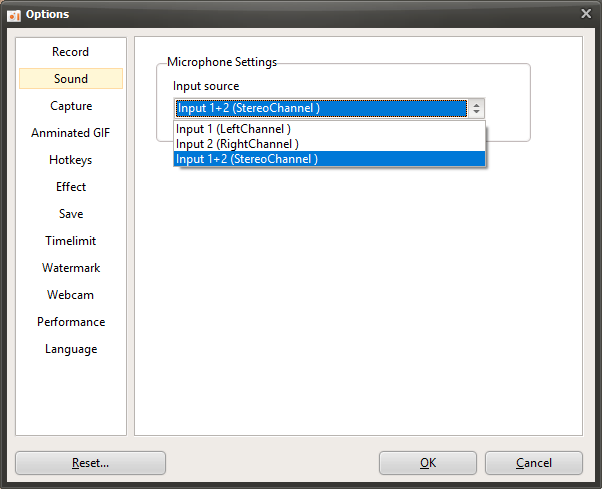
1. In the oCam main window, click 'Tools' in the top menu, then select 'Options'.
2. When the Settings window opens, click the 'Sound' tab in the left menu.
3. In the 'Sound' tab, find the 'Microphone Settings' section and check the 'Input Source' setting.
4. If the microphone audio is heard only from the left speaker, change the input source to 'Input 1 (Left Channel)'.
5. Conversely, if the microphone audio is heard only from the right speaker, change the input source to 'Input 2 (Right Channel)'.
6. After saving the settings, try recording again and check whether the sound is recorded properly.
Notes
- In general, microphone input is mono, but in the case of inexpensive standard microphones, even if the physical input is mono, the software may process it as stereo, with identical data on the left and right channels. However, microphones used with professional audio interfaces are handled as mono both in the actual input and in software processing, so you must explicitly set the input source as described above for proper recording.
- If the microphone audio is heard only from the left speaker and you set it to 'Input 1 (Left Channel)' but no sound is recorded, while it records normally when set to 'Input 2 (Right Channel)', the left and right speaker channels may be physically reversed. In that case, you should check whether the physical speaker positions have been swapped or whether the left and right inputs of the cables connected to the audio interface have been reversed. For example, the speaker cables may be connected incorrectly, or the output settings of the audio interface may be reversed.
With these settings, you can record microphone audio properly in oCam even when using an audio interface. If the problem continues after changing the settings, it is recommended to also check the audio interface driver settings and connection status.