How to Fix Audio Coming from Only One Speaker During Microphone Recording
When recording microphone audio with oCam through a professional audio interface, the sound may not be recorded properly because of issues that differ from those of a standard microphone. In particular, when using an audio interface, problems can occur because the microphone input is handled as mono (a single channel). Below is a detailed explanation of how to resolve this issue and important points to keep in mind.
When recording microphone audio through an audio interface, you may encounter a problem where the sound comes from only one speaker channel, such as the left or right side. This happens because of the way the audio interface handles mono input. To fix this, you need to adjust the microphone input source setting in oCam. Please follow the steps below:
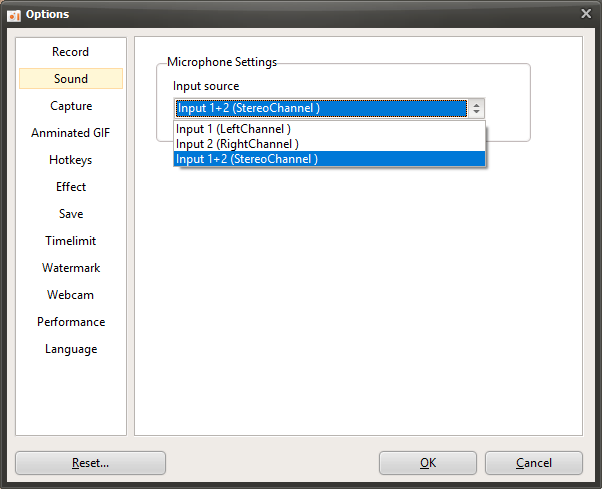
1. In the oCam main window, click 'Tools' in the top menu, then select 'Options'.
2. When the Settings window opens, click the 'Sound' tab in the left menu.
3. In the 'Sound' tab, find the 'Microphone Settings' section and check the 'Input Source' setting.
4. If the microphone audio is heard only from the left speaker, change the input source to 'Input 1 (Left Channel)'.
5. Conversely, if the microphone audio is heard only from the right speaker, change the input source to 'Input 2 (Right Channel)'.
6. After saving the settings, try recording again and check whether the sound is recorded properly.
Notes
- In general, microphone input is mono, but in the case of inexpensive standard microphones, even if the physical input is mono, the software may process it as stereo, with identical data on the left and right channels. However, microphones used with professional audio interfaces are handled as mono both in the actual input and in software processing, so you must explicitly set the input source as described above for proper recording.
- If the microphone audio is heard only from the left speaker and you set it to 'Input 1 (Left Channel)' but no sound is recorded, while it records normally when set to 'Input 2 (Right Channel)', the left and right speaker channels may be physically reversed. In that case, you should check whether the physical speaker positions have been swapped or whether the left and right inputs of the cables connected to the audio interface have been reversed. For example, the speaker cables may be connected incorrectly, or the output settings of the audio interface may be reversed.
With these settings, you can record microphone audio properly in oCam even when using an audio interface. If the problem continues after changing the settings, it is recommended to also check the audio interface driver settings and connection status.
Today's News/Tips
How to Record Audio Only with oCam
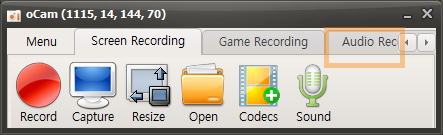
On the main screen of oCam, click the Audio Recording tab to open a simple, user-friendly menu. This menu provides various recording options in oCam, allowing users to adjust the settings as needed. One of oCam's strengths is its intuitive interface, which makes it easy to use for everyone from beginners to IT professionals.
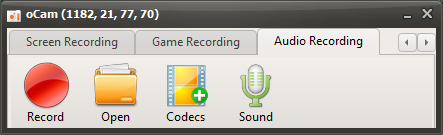
You can use this feature whenever you want to record only audio, such as for creating audio content, recording podcasts, or capturing background music.
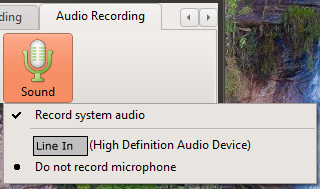
Click the Sound button to choose the audio source, such as system sound or microphone input settings, and then click the Record button on the screen to start recording. This feature is very useful for tasks where you need to focus only on audio. For example, it is efficient when you want to extract lecture audio separately, record an interview, or make a simple voice recording. Thanks to oCam's simple controls, these settings can be changed in just a few clicks, making the user experience even more convenient.
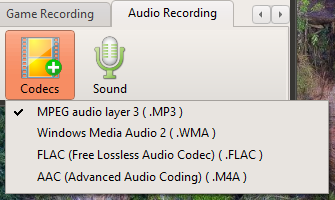
By default, audio files are saved in MP3 format. MP3 is one of the most widely used formats for audio recording because it offers small file sizes and excellent compatibility with most devices and software. It provides a good balance between sound quality and file size, making it suitable for general use. However, for users with more specific needs, oCam also provides an option to select audio codecs other than MP3 through the Codec button. If you choose AAC format, you can maintain high sound quality with efficient compression, giving you more flexibility depending on your project.
These settings clearly show how simple yet powerful oCam is. oCam is more than just a screen recording tool. It is versatile software that also supports professional audio recording tasks. Users can further adjust details such as the file save location, audio quality, and input source in the oCam settings menu. For example, you can adjust the volume levels of the microphone and system sound separately, or specify a save folder to optimize your workflow. Thanks to this flexibility and convenience, oCam is widely used in many different environments, from individual users to IT professionals. If you want high-quality audio recordings, it is recommended to adjust the codec and detailed settings to match your working environment for the best results.