What to Do If the "WASRecord: pAudioClient->Initialize failed. (hr=0x80070005)" Error Occurs
The "WASRecord: pAudioClient->Initialize failed. (hr=0x80070005)" error can occur when microphone permission has been disabled on Windows 10 or later. This happens because oCam does not have the required permission to access the microphone. Below is a detailed explanation of how to resolve this issue.
For oCam to use the microphone properly, microphone access must be enabled in the Windows Privacy settings. Follow the steps below to check and adjust the setting:
1. Open the Windows Start menu and click 'Settings' (the gear icon).
2. In the Settings window, select 'Privacy'.
3. Click 'Microphone' in the left menu.
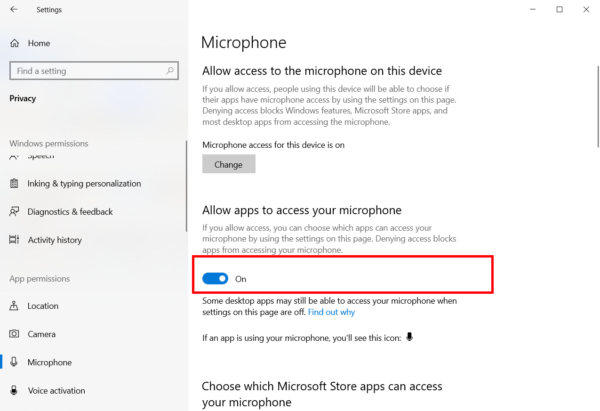
4. Check whether the 'Microphone access for this device' option is turned on. If it is turned off, click the switch to turn it on.
5. Check whether 'Allow apps to access your microphone' is turned on. If this setting is disabled, apps such as oCam cannot use the microphone. Make sure it is turned on, then save the setting.
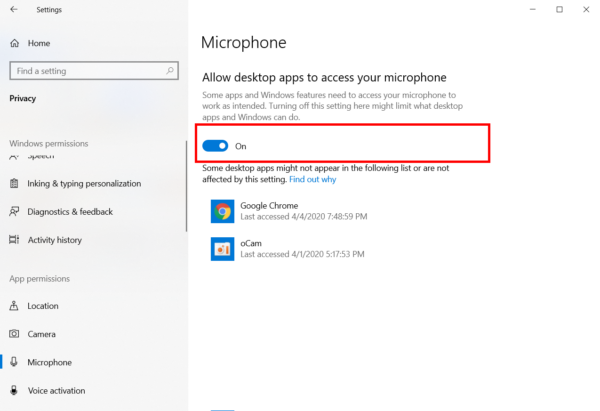
After changing the setting, restart oCam and try recording with the microphone again. If the permission has been granted properly, the "WASRecord: pAudioClient->Initialize failed. (hr=0x80070005)" error is likely to be resolved.
If the problem continues, check the microphone device settings themselves in Control Panel > Sound > Recording tab, or try selecting the microphone input source again in oCam's 'Sound' settings. In addition, updating Windows and oCam to the latest version may also help.
Today's News/Tips
How to Use the x264vfw External Codec
oCam supports external codecs (VFW), and here we will look at how to use the x264 codec.
You can download the x264 codec from the site below.
https://sourceforge.net/projects/x264vfw/
Go to the site and click the Download button.
The download will start automatically.
On the installation screens, just keep clicking Next.
Accept the license agreement.
Specify the installation path.
The installation is complete.
Click Finish.
After installing the codec, you must restart oCam before it will appear in the external codec list.
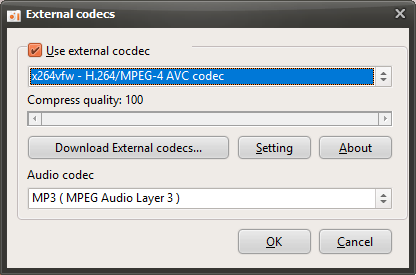
After restarting oCam, click the Codec button in the oCam main window, then click the External Codec menu.
Select the Use External Codec checkbox.
From the list, select x264vfw - H264/MPEG-4 AVC codec.
Then click the Settings button to view the detailed codec settings.
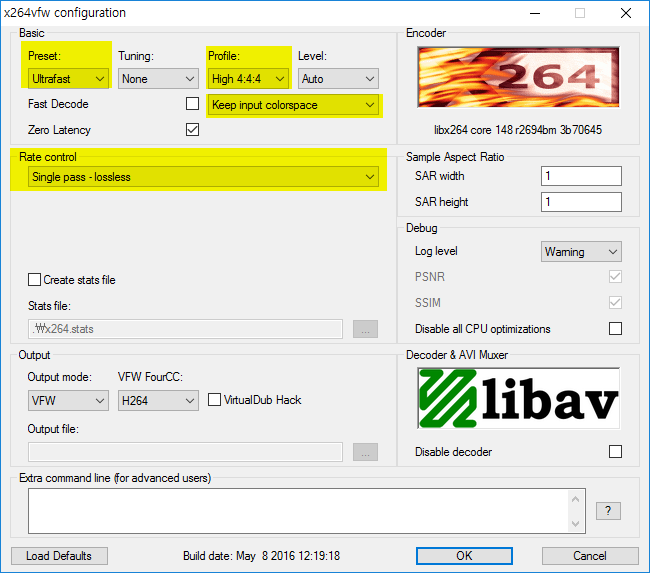
The codec settings window will appear as shown below. Since we need to record the screen in real time rather than perform normal video encoding, select Ultrafast in Preset and check the Zero Latency checkbox so that encoding is performed as quickly as possible, then click the OK button.
( This setting method is useful for real-time recording, and you can adjust it as needed depending on your situation. )
After configuring it this way, your recording will use the x264 codec.
* For game recording, if the game you want to record is 64-bit, you must also install the 64-bit version when installing x264vfw ( by default, it is installed automatically unless you change the installation options ). Then run x264vfw - Configure x264vfw64 from the Start menu and configure it the same way as described above.
* The x264vfw settings Keep/Accept only YUV 4:2:0, Keep/Accept only YUV 4:2:2, and Keep/Accept only YUV 4:4:4 are not supported, and recording will fail if you use those settings.