What are codec and digital container format?
What are codec and digital container format?
Although you generally do not need to understand these two terms to use oCam, you should know them if you want to use the extended functions in oCam.
Codec and digital container format have multiple meanings, but here we explain only the meanings used for oCam.
First, a digital container format refers to common container formats such as AVI, MP4, and MOV.
Wikipedia has more detailed explanations.
A container format, also called a wrapper format, is a metadata file format that defines how different data components can coexist within a computer file.
In simpler words, AVI, MP4, MOV, FLV, and similar formats refer to the file structure that determines how video or audio data is stored.
And the data stored in that container is related to codecs.
The definition of a codec is described in Wikipedia as follows.
http://ko.wikipedia.org/wiki/%EC%BD%94%EB%8D%B1
A codec (short for coder-decoder) is hardware or software that can encode and decode, or both, a data stream or signal. It also refers to the algorithm used to do so. In telecommunications, the term originally referred to sender and receiver devices, known as a “coder” and “decoder,” which originated in 1980s America.
A codec includes software that compresses or decompresses data using compression functions, or devices and software that convert media such as sound and video into different formats.
To explain more simply, in current oCam usage, codecs are used to encode screen data into video, generating encoded video and audio data, and this data is saved as a file according to the container format selected in oCam.
Examples of codecs that we commonly know are XVID, MPEG-1, MPEG-2, MPEG-4, and H264.
For example, if there is a file with an AVI extension, then the digital container format is AVI, and the stored video and audio are saved using the AVI-defined structural format.
At that time, the stored video data may be H264, MPEG-4, and so on, while the audio data may be MP3, PCM, etc.
Today's News/Tips
How to Record Audio Only with oCam
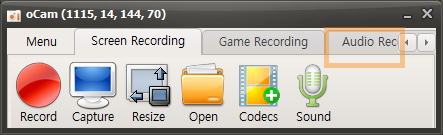
On the main screen of oCam, click the Audio Recording tab to open a simple, user-friendly menu. This menu provides various recording options in oCam, allowing users to adjust the settings as needed. One of oCam's strengths is its intuitive interface, which makes it easy to use for everyone from beginners to IT professionals.
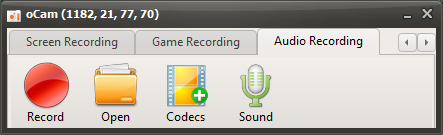
You can use this feature whenever you want to record only audio, such as for creating audio content, recording podcasts, or capturing background music.
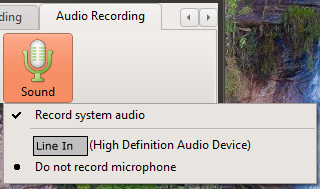
Click the Sound button to choose the audio source, such as system sound or microphone input settings, and then click the Record button on the screen to start recording. This feature is very useful for tasks where you need to focus only on audio. For example, it is efficient when you want to extract lecture audio separately, record an interview, or make a simple voice recording. Thanks to oCam's simple controls, these settings can be changed in just a few clicks, making the user experience even more convenient.
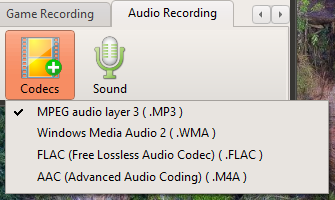
By default, audio files are saved in MP3 format. MP3 is one of the most widely used formats for audio recording because it offers small file sizes and excellent compatibility with most devices and software. It provides a good balance between sound quality and file size, making it suitable for general use. However, for users with more specific needs, oCam also provides an option to select audio codecs other than MP3 through the Codec button. If you choose AAC format, you can maintain high sound quality with efficient compression, giving you more flexibility depending on your project.
These settings clearly show how simple yet powerful oCam is. oCam is more than just a screen recording tool. It is versatile software that also supports professional audio recording tasks. Users can further adjust details such as the file save location, audio quality, and input source in the oCam settings menu. For example, you can adjust the volume levels of the microphone and system sound separately, or specify a save folder to optimize your workflow. Thanks to this flexibility and convenience, oCam is widely used in many different environments, from individual users to IT professionals. If you want high-quality audio recordings, it is recommended to adjust the codec and detailed settings to match your working environment for the best results.