What to Do If an Error Occurs When Running the oCam Installer
When installing or running oCam, you may see an error message like the one below:
"Access violation at address XXXXX in module 'oCamXXXX.exe'. Write of address 00401000"
This error usually occurs when an anti-cheat program such as GameGuard is running. GameGuard uses system resources exclusively to protect the game, and this can interfere with the installation or execution of oCam. To resolve this issue, follow the steps below:
1. Completely close the game that is currently running. When the game closes, GameGuard will also close.
2. To make sure both the game and GameGuard have fully closed, open Task Manager (Ctrl + Shift + Esc) and check whether any related processes, such as GameGuard processes, are still running. If any remain, end those processes manually.
3. After GameGuard has closed, try installing or running oCam again.
By following the steps above, you can resolve the conflict caused by GameGuard and install or run oCam normally. If the problem continues, restart your computer and try installing oCam again without launching the game.
Today's News/Tips
Overview of CapturePlus Image Effect Features
This feature lets you adjust image brightness, mosaic effects, size, and more.
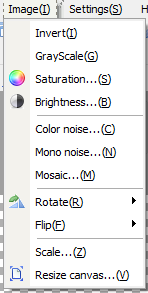
-Invert Colors: Applies an overall color inversion effect to the image.
-Black and White Effect: Applies a black-and-white effect to the image.
-Adjust Saturation: Lets you adjust the saturation level.
-Adjust Brightness: Lets you adjust the brightness.
-Add Noise (Color): Creates a color noise effect.
-Add Noise (Mono): Mono creates a white noise effect.
-Add Mosaic: Applies a mosaic effect to the entire image.
-Rotate: Lets you rotate the image to 90, 180, 270 degrees, or a custom angle.
-Flip: Flips the image left/right or up/down.
-Zoom In and Out: Lets you enlarge or reduce the image, and you can keep the aspect ratio when changing the width or height.
-Resize Canvas: Lets you change the canvas size and background color.