How to Record Gameplay
* Game recording supports DirectX 8 through DirectX 12 and OpenGL.
Click the Game Recording tab at the top.
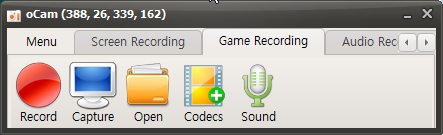
Once clicked, it will switch to the Game Recording tab as shown below, and the resize button will disappear.
Now move to the running game window, and you will see a yellow FPS counter appear at the top left of the game screen, as shown below.
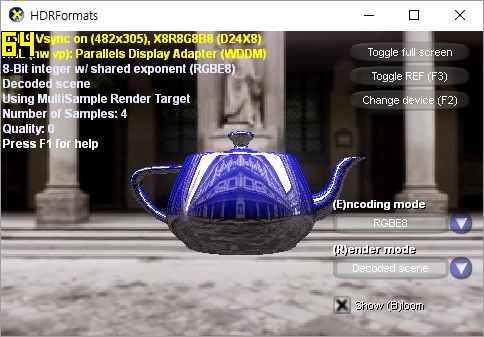
Now press the recording hotkey F2 ( you can change it in Settings. )
Then the FPS counter will turn red as shown below, indicating that recording is in progress.
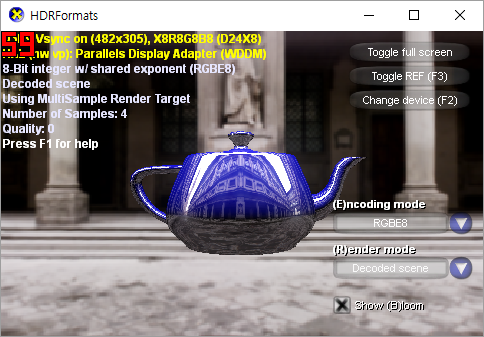
To stop recording, press the recording hotkey F2 again.
Please note that game recording does not work with all games.
If a game that used to work no longer records properly, it is likely being blocked by the game security solution used by the game company. In that case, it is recommended to ask the game company to add an exception so recording with oCam is allowed.
Today's News/Tips
oCam Advanced Settings - Save
Click Tools - Options on the oCam main menu to view the settings in the Save category.
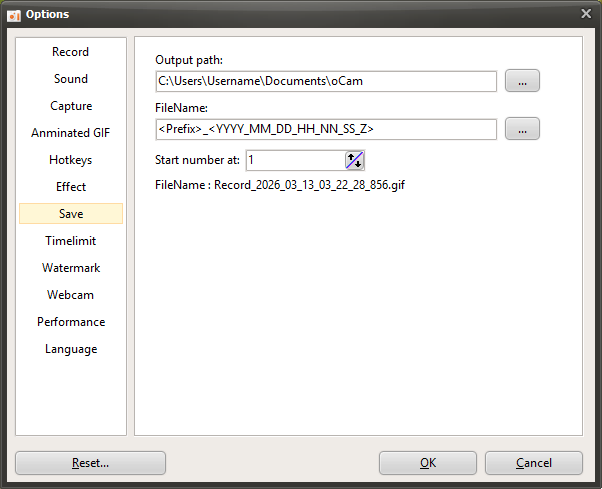
By default, the save path is set to the "This PC-Documents-oCam" folder in Windows 10, and all recordings, audio recordings, and captures are saved to this location.
The save path can be changed by clicking the button.

The file name to be saved follows a predefined format or a user-defined format, and by default it is set to "<Prefix>_<YYYY_MM_DD_HH_NN_SS_Z>".
The file name format can also be changed by clicking the button, and when you click it, you can see the predefined formats.
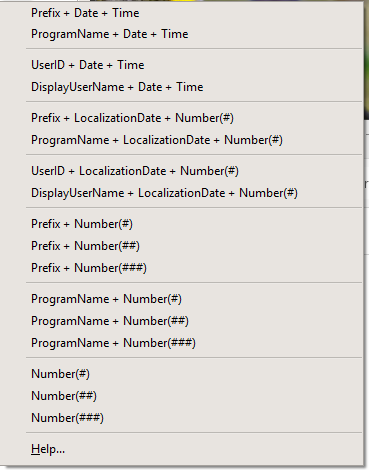
If you click the Help menu item, you can see more detailed information about the format, as shown below.
( When the Help menu item was clicked at 11:29:49.902 AM on June 16, 2016 )
<Y> = 16
<YY> = 16
<YYYY> = 2016
<M> = 6
<MM> = 06
<MMM> = 6
<MMMM> = June
<D> = 16
<DD> = 16
<DDD> = Thu
<DDDD> = Thursday
<DDDDD> = 2016-06-16
<DDDDDD> = Thursday, June 16, 2016
<C> = 2016-06-16 11:29:49 AM
<H> = 11
<HH> = 11
<N = 29
<NN> = 29
<S> = 49
<SS> = 49
<Z> = 902
<ZZZ> = 902
<T> = 11:29 AM
<TT> = 11:29:49 AM
<AM/PM> = AM
<a/p> = a
<ampm> = AM
<Prefix> = Recording
<ProgramName> = oCam
<UserID> = User Name
<DisplayUserName> =
<#> = 1
<##> = 01
<###> = 001
The file name format may feel difficult for some users, so here are a few examples.
- If the file name is <Prefix>_<#>, then <Prefix> is the prefix and # is the serial number.
The prefix is replaced with Recording when recording video, Audio when recording sound, and Capture when capturing the screen, while # is replaced with a serial number.
For example, when you finish recording the screen, a file named Recording_1 is created. ( Only if there is no similar file name in the oCam save folder. )
And when you record again, a file named Recording_2 is created. The reason the serial number becomes 2 is because a file named Recording_1 already exists.
- If the file name is <ProgramName>_<#>, then <ProgramName> represents the name of the program being recorded. In normal screen recording, it is replaced with oCam, and <#> is added as a serial number just as before.
However, when recording a game, recording starts inside the game program, so the file is created using the name of the game's executable file.
- If the file name is <dddddd>_<#>, then dddddd means the localized date, so on a Korean operating system it is replaced with the current date at the time this was written, Thursday, June 16, 2016, and # is filled in with a serial number.
The localized date varies depending on the language settings of the operating system. In other words, it appears differently on an English OS because it uses the format built into the operating system.
- If the file name is My_<#>_th_<Prefix>_File, then when recording, a file named My_1st_Recording_File is created, and when recording again, the file name becomes My_2nd_Recording_File.
- If the file name is <UserID> recorded <Prefix> of the game called <ProgramName> on <DDDDDD>. then it may be created as "AdvancedDeveloper recorded Recording of the game called LocalDeformablePRT on Thursday, June 16, 2016." The content inside <> varies depending on what is being recorded.
Serial number start means the starting number of the serial number that can be set with # inside <>.