What to Do If the "Cause: failed to avio_open(error=-13)" Error Occurs During Recording
This error may occur because AhnLab V3 or Avast falsely detects oCam as suspicious. Below is a detailed explanation of how to resolve the issue for each antivirus program.
For AhnLab V3, if oCam is being falsely detected, you can resolve the issue by adding the `oCam.exe` file in the oCam installation folder to the scan exclusion list.
1. Open the AhnLab V3 program.
2. Go to the Settings menu and find the 'Scan Exclusions' or 'Exclusion Settings' option.
3. In the 'File/Folder Exclusions' section, click the 'Add' button.
4. Go to the folder where oCam is installed, for example `C:\Program Files\oCam`, and select the `oCam.exe` file.
5. Add it to the exclusion list and save the settings.
6. Run oCam again and check whether recording works normally.
* There may also be a conflict with the anti-ransomware feature.
For example, if drive E is set as a ransomware-protected drive and oCam's save folder is also set to drive E, an error may occur during recording. This happens because the anti-ransomware feature restricts file writing on that drive, preventing oCam from saving the video file.
In this case, keep drive E as a ransomware-protected drive and set oCam's recording save folder to drive C or D instead.
Because drive E is configured as a ransomware-protected drive, file creation and modification are restricted for security purposes, so programs such as oCam are blocked from saving files there. Therefore, the simplest solution is to move the save path to drive C or another unrestricted location.
If you want to continue using drive E, you may also consider temporarily disabling the anti-ransomware setting or adding the oCam executable file (`oCam.exe`) as an exception in the security policy for that drive.
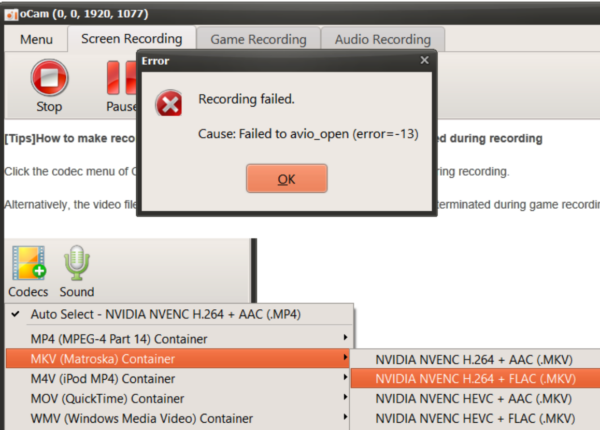
For Avast, if oCam is falsely detected, a pop-up message like the one below may appear. In that case:
1. In the pop-up, click the 'Allow App' button to register oCam as a trusted program.
2. This will remove the error and allow oCam to work normally.
If the pop-up does not appear, you can adjust the allow settings manually:
1. On the Avast main screen, click 'Menu' and then select 'Settings'.
2. Go to the 'Blocked & Allowed Apps' section.
3. Click the '+ Allow App' button and add the oCam executable file (`oCam.exe`).
4. Once oCam has been added to the allowed apps list, save the setting and run oCam again. Recording should then work without any issues.
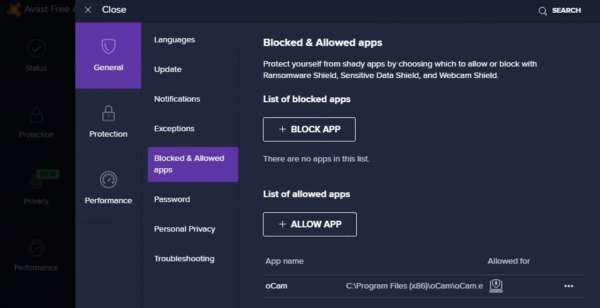
As an alternative, you can also disable part of the protection feature:
1. Open the 'Protection' menu on the Avast main screen.
2. Find the 'Ransomware Shield' option and turn it off.
3. Disabling Ransomware Shield may resolve the error related to oCam.
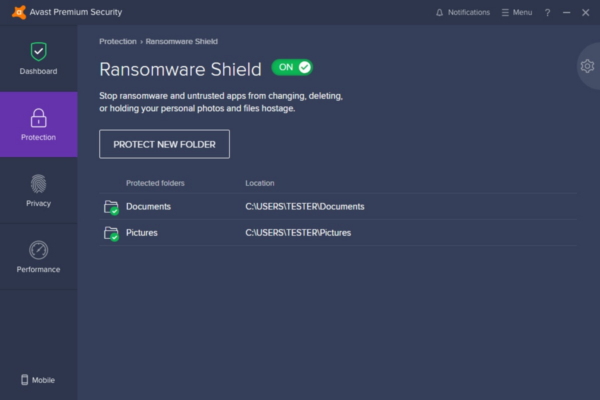
You can choose and apply whichever method is more convenient. If the problem continues even after changing the antivirus settings, it may also help to contact AhnLab or Avast customer support.
Today's News/Tips
How to Add a Custom Watermark to Recorded Videos
Adding a watermark to videos recorded with oCam helps clearly indicate the source of the video and reduce the chance of unauthorized use by others. A watermark is a feature that inserts a specific image into the video, such as a logo, text, or icon, to identify the creator or ownership. This is effective for protecting the uniqueness of the video and promoting your brand.
To add a watermark in oCam, first click 'Tools' in the top menu of the oCam main window, then select 'Options'. When the Settings window opens, click 'Watermark' in the left menu to go to the watermark settings screen.
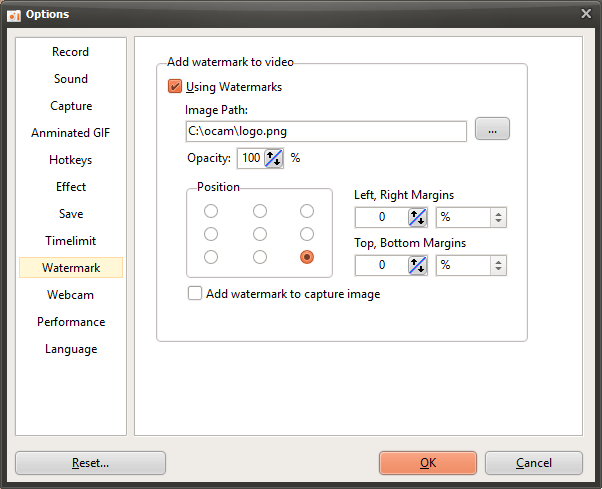
On the watermark settings screen, you can adjust several options. First, if you check 'Use Watermark', the selected image will be inserted as a watermark in the recorded video. You can choose the image to use as the watermark under 'Image Path', and PNG, JPG, and BMP formats are supported. PNG format in particular also supports images with an alpha channel (transparency), so you can use logos or images with transparent backgrounds.
The 'Opacity' setting adjusts the transparency of the watermark image. If the opacity is set to 100%, the watermark image will appear fully opaque. The lower the value, the more transparent the image becomes, allowing it to blend more naturally into the video. This lets you adjust the watermark so it does not interfere with the readability of the video.
The 'Position' setting determines where the watermark appears in the video. For example, you can choose the top left or bottom right so the watermark appears in the desired area of the screen. This allows you to place the watermark without covering the main content of the video.
For example, if you set a specific logo image as the watermark and start recording, that image will appear as a watermark at the selected position in the final video. A watermark added in this way makes the source of the video clear and helps viewers easily identify the creator.
If you want to create your own watermark image, search for "create watermark" on a search site to find various design tools and methods. For example, you can use graphic editing programs such as Photoshop or Canva to create a logo or text, or use an online watermark generator to easily create a distinctive watermark.
Using the watermark feature in oCam, you can give your videos a more professional and secure finish with just a few simple settings. Try creating your own unique videos with the right image and settings.