How to Improve Recording Video and Audio Quality in oCam
How to Improve Video Recording Quality
By default, oCam uses the
MPEG-4 video codec.
The MPEG-4 codec, which is used by default, provides medium-level video quality by nature. However, it is set as the default because it is suitable for recording on low- to mid-spec computers, does not use a hardware encoder, and offers good software compatibility ( it can be played in most video players ).
If you have an NVIDIA graphics card ( GTX 600 series or later for desktops, or GTX 650M or later for laptops ) or if your CPU performance is high, you can improve video quality by recording with the NVENC H.264 encoder or the Open H.264 encoder.
As shown below, click the Codec button in the oCam main window and select either NVIDIA NVENC H.264 ( your graphics card must support it, and if it does not, an error will occur and recording will fail when you start recording ) or the Open H.264 codec to record.
For the Open H.264 codec, you need to set Recording - General - Quality to Very High in the settings to get the best video quality, as shown below. ( In the case of the NVIDIA NVENC H.264 codec, the settings below do not apply. You can change its settings from Codec - Hardware Encoder Settings in the oCam main window. )
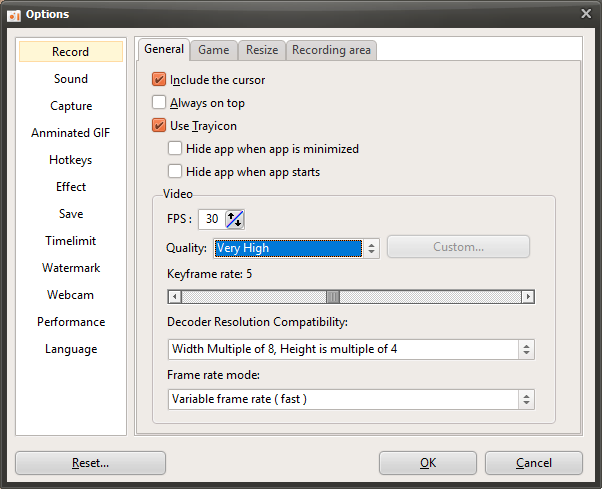
* In the case of the Open H.264 codec, setting the quality to Very High provides good video quality, but it uses a lot of CPU resources, so frame rates may drop significantly when recording games. If your system performance is not sufficient, we recommend using the MPEG-4 codec.
* In the case of the NVIDIA NVENC codec, because it is a hardware encoder, it causes almost no frame drops during game recording and offers the best recording performance among all built-in codecs in oCam. If your graphics card supports it, using the NVENC codec is the best option.
* When using the NVIDIA NVENC codec, some games use a large amount of GPU memory, and encoding also uses a large amount of GPU memory, so recording may fail if GPU memory is insufficient.
* The MP4 container was used in the example above, but it can also be used with MKV, M4A, MOV, and AVI containers.
How to Improve Audio Quality
By default, oCam uses the
AAC audio codec ( 192 kbps ).
To change the sample rate or bitrate of the audio codec, click the Codec button in the oCam main window, then click Audio Codec Settings.
Then the following window will appear.
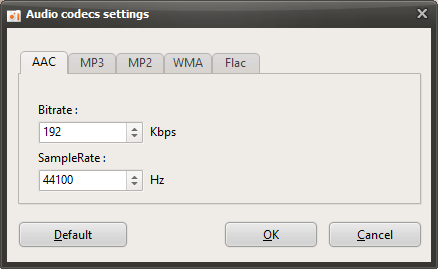
As shown in the image above, the supported audio codecs are AAC, MP3, MP2, WMA, and Flac.
Personally, I recommend using the AAC codec because it is the most widely used and offers the best compatibility.
You can improve audio quality by changing the bitrate or sample rate.
For the AAC codec, the maximum supported bitrate is 512 kbps, and the maximum sample rate is 96000 kHz.
If you want to record losslessly, you can use the Flac codec, but the recording file size may become large.
To change the audio codec you want to use for recording, click the Codec button in oCam, select the container you want ( for example, assuming you are using MKV ), and then select a codec in that container that includes the audio codec you want before recording.
Today's News/Tips
A Brief Overview of CapturePlus Features
CapturePlus is a convenient screen capture tool that supports a wide range of capture and editing features.
It is compatible with Windows XP through Windows 11, and supports more than 20 image formats as well as dual monitors.
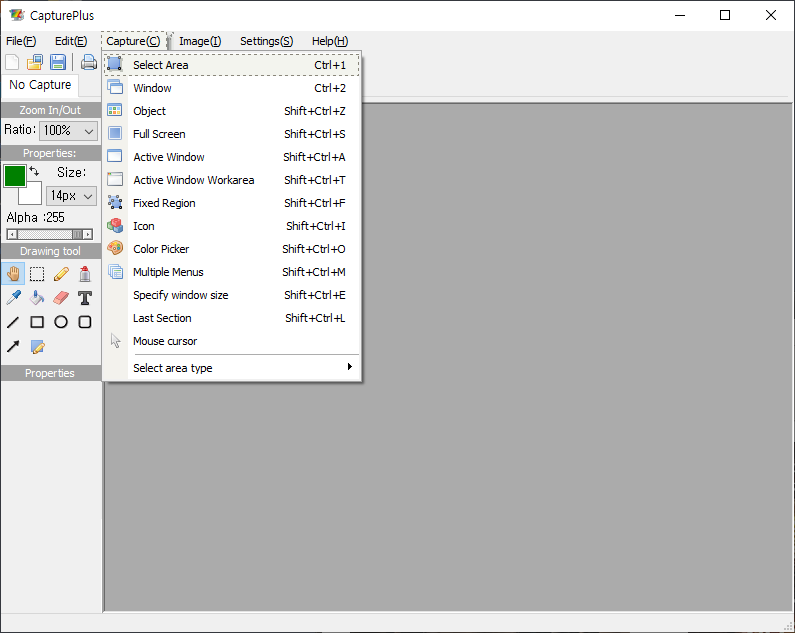
The main screen is arranged with the main menu and toolbar at the top, and drawing tools on the left.
If you are using CapturePlus for the first time, go to Screen Capture -> Select Area from the menu (hotkey: Shift + Ctrl + R), then drag to select the area you want to capture. You will then be able to view the captured screen immediately.

Screen Capture Feature(Screen Capture)
Select Area, Window, Window Scroll, Object, Full Screen, Active Window, Active Window Work Area, Fixed Rectangle Area, Window Icon, Color Capture, Menu Capture, Set Window Size, Last Capture Area, Mouse Cursor

Image Editor(Image Editor)
With the built-in image editor, you can annotate and highlight images with text, arrows, shapes, and more, along with many other useful features.

Image Effect(Image Effect)
You can apply effects to images very easily. Invert Colors, Black and White Effect, Saturation Adjustment, Brightness Adjustment, Add Noise (Color), Add Noise (Mono), Apply Mosaic, Rotate, Flip, Resize Image, Resize Canvas

Preferences and Additional Features(Additional Function)
Using the advanced settings, you can customize hotkeys, file naming, image quality, tray icons, and many other options.