What Are Codecs and Digital Container Formats?
When using oCam normally, you do not need an in-depth understanding of codecs and digital container formats. However, if you want to use oCam's extended features or optimize your recording settings, it is useful to understand these two terms. Below is an easy explanation of codecs and digital container formats, focused on how they relate to oCam.
* What is a digital container format?
A digital container format refers to familiar file extensions such as AVI, MP4, MOV, and FLV. It is a meta file format that defines the structure for storing video, audio, and metadata (for example, subtitles and time information) together in a single file. Simply put, you can think of a container format as the framework of a file structure that determines how video and audio data are stored.
For more information, see Wikipedia:
https://en.wikipedia.org/wiki/Container_format
For example, if a file is an AVI file, the container format is AVI, and the video and audio data inside that file are stored according to the structure defined by AVI. A container format acts like a "container" that holds the data, while the actual method used to encode the data is determined by the codec.
* What is a codec?
A codec is hardware or software that performs encoding and decoding. It includes algorithms for compressing data, decompressing it, or converting it into another format. In oCam, codecs are used to convert screen video data into a video file and to generate audio data. The generated data is then saved according to the digital container format selected by the user.
For more information about codecs, see Wikipedia:
https://en.wikipedia.org/wiki/CodecSimply put, a codec is a tool that compresses and converts video or audio data so it can be stored or played back efficiently. Common codecs used in oCam include XVID, MPEG-1, MPEG-2, MPEG-4, and H.264, while common audio codecs include MP3 and PCM.
* Codecs and container formats in oCam
In oCam, a codec is used to encode video and audio data in order to convert screen recording data into a video file. This encoded data is then saved as a file in the digital container format selected by the user, such as AVI or MP4. For example:
- If the file extension is AVI, the container format is AVI, and the video data inside may be encoded with H.264 or MPEG-4. The audio data may be saved as MP3 or PCM.
- In the case of an MP4 file, the container format is MP4, and it may similarly contain video encoded with H.264 and audio encoded with MP3.
* Summary
In oCam, the digital container format is the framework that defines the file structure, such as AVI or MP4, while the codec is the method used to compress and convert the video and audio data inside it, such as H.264 or MP3. oCam's default settings are enough for high-quality recording, but depending on your specific purpose, such as optimizing file size or improving editing compatibility, adjusting the codec and container format can make your workflow more efficient. If needed, try selecting the codec and format you want in oCam's codec settings menu.
Today's News/Tips
Using external codecs - using x264.
Using an external codec - Using x264
oCam supports external codecs (VFW), and here we will learn how to use the x264 codec.
You can download the x264 codec from the site below.
http://sourceforge.net/projects/x264vfw/
Go to the site and click the download button.
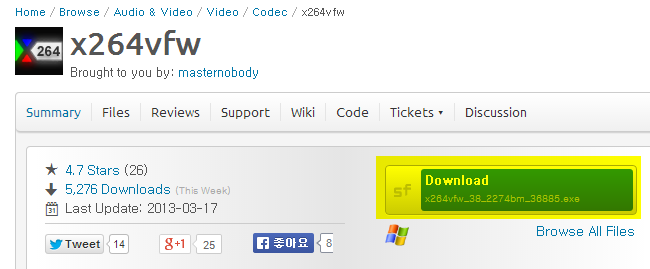
Download starts automatically.
For the installation screen, you can just click Next.
Agree to the license agreement.
Specify the installation path.
Installation is complete.
Click Finish.
After installing the codec, you must restart oCam to see it in the external codec list.
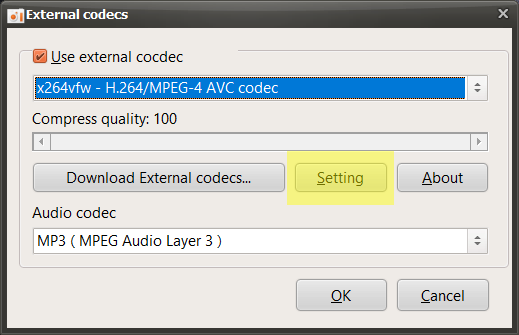
After restarting oCam, click the Codec button on the main oCam window and click the External Codec menu.
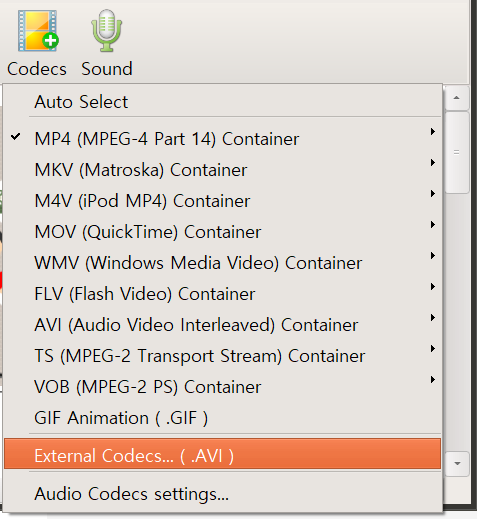
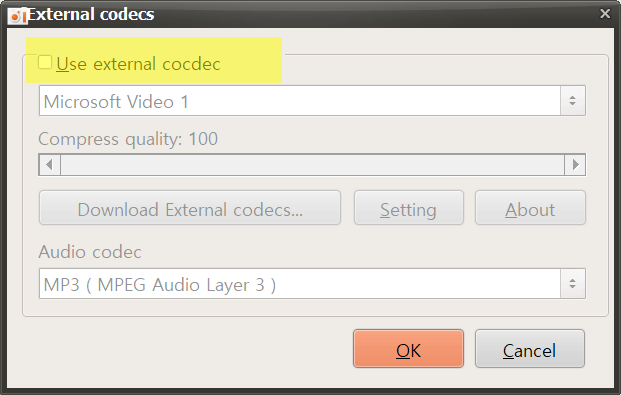
Check the Use External Codec box.
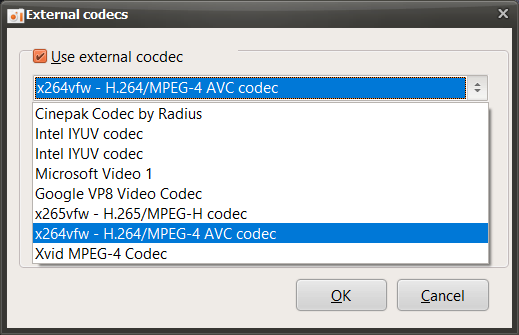
In the list, select x264vfw - H264/MPEG-4 AVC codec.
Then click the Settings button to view detailed codec settings.
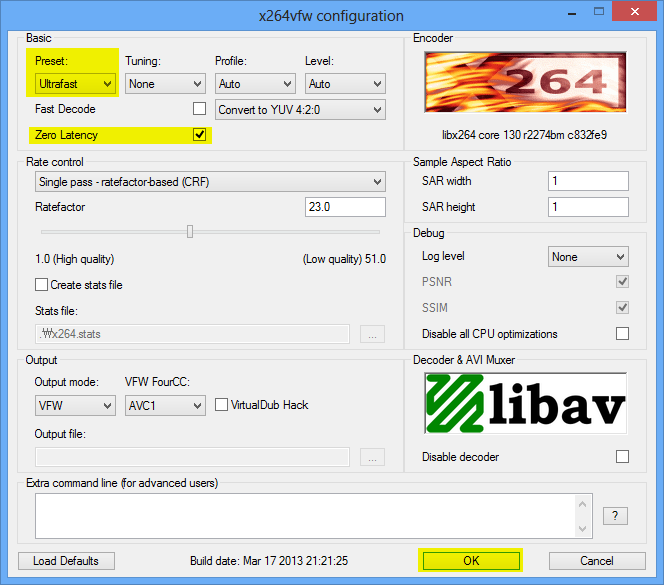
A codec settings window opens as shown below. Since this is not normal video encoding but real-time screen recording, select Ultrafast in Preset and check the Zero Latency box to make encoding as fast as possible, then click OK.
(This setting is useful for real-time recording, and you can adjust it as appropriate for your situation.)
After setting it this way and starting recording, it will be recorded using the x264 codec.
If you record like this, the recording is done using x264 codec.
* For game recording, if the game you want to record is 64-bit, you must also install the 64-bit version of x264vfw (by default, unless you touch the option during x264vfw installation), x264vfw-Configure x264vfw64 from the Start menu. Run it and set it up as described above.
* Keep / Accept only YUV 4: 2: 0, Keep / Accept only YUV 4: 2: 2, Keep / Accept only YUV 4: 4: 4 are not supported for x264vfw setting and recording will fail when using this setting.