How to set recording quality during recording (from high quality to low quality)
Note: This setting does not apply to external codecs. It applies only to oCam’s built-in codec.
Lowering the recording quality will reduce the size of the recorded video file, but the image quality will also become worse.
There is a menu at the top of oCam. Click Tools - Options, then click Encoding on the left, and you can select the video quality as shown below.
By default, it is set to Very High (high quality).
During recording, the video quality can be selected using the following levels.
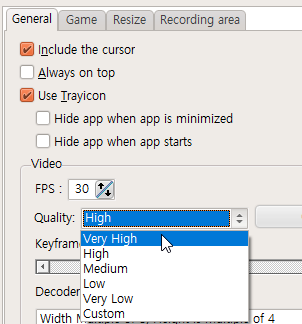
Below are captured preview images showing recorded quality from Very High to Very Low.
Image source: http://www.mrwallpaper.com/rubber-duck-city-wallpaper/
Recorded in Very High

Recorded in High

Recorded in Medium

Recorded in Low

Recorded in Very Low

Today's News/Tips
oCam Advanced Settings - Mouse Cursor Effects - Highlight Effects
Click Tools - Options on the oCam main menu, then open the Effects category to check the Highlight Effect settings.
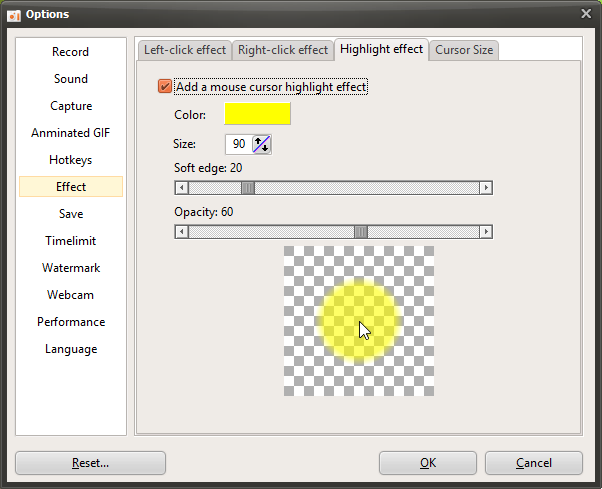
The Highlight Effect is used to help viewers immediately recognize the current position of the mouse cursor while watching a video.
The options are described below.
Color
- This is the color applied to the highlight effect. It is set to yellow by default.
Size
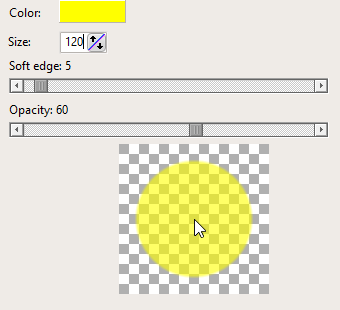
- When the highlight effect is enabled, a semi-transparent circle is drawn around the mouse cursor. This option sets the size of that circle. It is set to 90 by default.
Soft Edge
- The higher this value becomes, the softer the edge of the circle appears.
Opacity
- The lower this value is, the more transparent the circle becomes.
Preview
- Lets you preview the mouse effect you have configured.
If the opacity value is set too high, the highlight effect may cover the part of the screen where the mouse is located. For that reason, it is best to use an appropriate opacity setting.