Anthropic Unveils “Channels,” a New Way to Control Claude Code Sessions Directly from Mobile
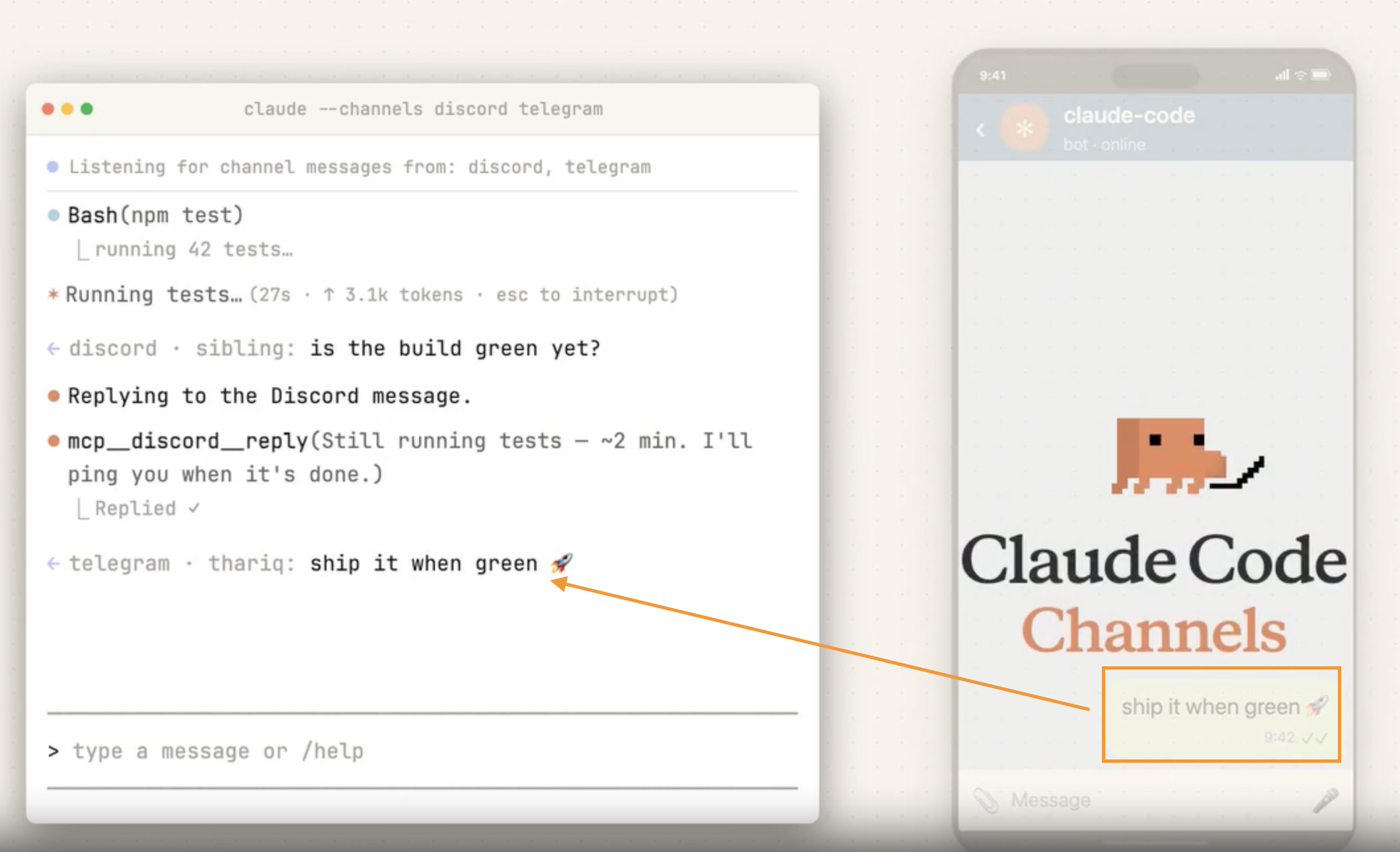
Anthropic has introduced Channels, a new feature that makes it much easier to use Claude Code in mobile environments. With this update, users can control their AI coding agent through messaging apps like Telegram and Discord, sending instructions from their smartphones as casually as they would text a friend.
At launch, Channels supports Telegram and Discord first. This means users no longer need to be sitting in front of a desktop development setup to interact with an active Claude Code session. Whether they are commuting, away from their desk, or simply on the go, they can reconnect to an existing session and send prompts in real time. Requests like “check that error again,” “summarize the test results,” or “continue refactoring that code” can now be handled directly from a mobile device.
What makes this update especially interesting is how it expands the development environment into communication tools people already use every day. Until now, coding agents were typically accessed through traditional developer interfaces such as IDEs or terminals. With Channels, familiar messaging apps themselves become the interface for directing the agent. Instead of learning a new workflow, users can collaborate with AI in an environment that already feels natural and intuitive.
Another important aspect is continuity of context. This is not just about sending isolated commands from a phone. Users can stay connected to the flow of an existing session and continue work without losing momentum. That makes the feature especially practical for developers who are in meetings, traveling, or working asynchronously with teammates. Even when they are away from their main machine, they can still monitor progress and provide instructions as needed.
Ultimately, Channels makes AI coding agents more accessible, more lightweight, and more integrated into everyday work. It reflects a broader shift away from development environments tied to a single device or location, and toward workflows that can continue anywhere. If Anthropic expands platform support and continues refining the experience, messenger-based AI development workflows could become mainstream sooner than many expect.
Today's News/Tips
How to Find Animated GIFs: Try Using GIPHY.

GIF [Graphics Interchange Format]
One of the compression storage methods used to speed up image transfer,
Compared to JPEG files, it supports fewer colors and has a lower compression ratio, but it offers faster transfer speeds.
'Graphics Interchange Format'
is what GIF stands for, and it was developed to compress graphics for faster transmission over the internet.
When browsing websites, you often come across many animated GIF images.
Huh? Where do people get those?
Where do they even download them?
Where did they get them from?
You’ve probably wondered that, right?
You can search here and use them.