How to Fix Severe Lag When Editing Videos in Adobe Premiere
When recording a normal screen with oCam, there is usually no major problem, but when recording games, the average bitrate of the video file may be set excessively high. A high bitrate provides high-quality video, but it can cause severe lag when editing the file in editing software such as Adobe Premiere Pro. To fix this, you need to lower the bitrate. Below is a detailed explanation of how to reduce the bitrate and improve editing performance.
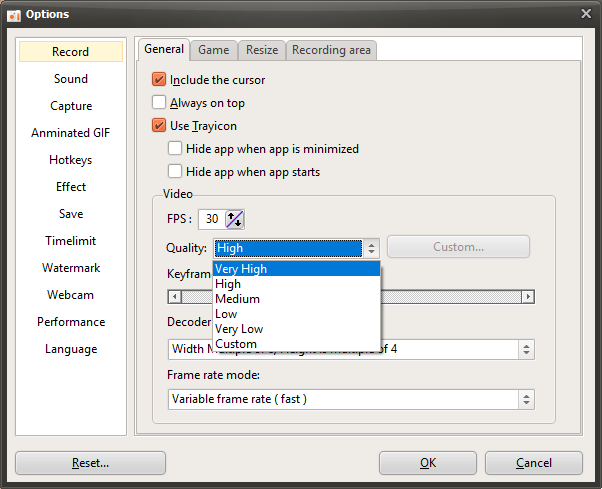
1. Adjusting the Bitrate When Using a Built-in Codec
If you are using oCam's built-in codec, you can reduce the bitrate by lowering the quality setting. Follow these steps:
1. In the oCam main window, click 'Tools' in the top menu, then select 'Options'.
2. In the Settings window, go to the 'Recording' tab and check the 'General' section.
3. In the 'General' section, find the 'Quality' setting and lower the quality by adjusting the slider. The lower the quality, the lower the bitrate, which reduces the file size and decreases lag during editing.
4. Click the 'OK' button to save the settings, then try recording again.
2. Adjusting the Bitrate When Using an NVIDIA Codec
If you are using an NVIDIA hardware codec, you can adjust the bitrate directly. Follow these steps:
1. In the oCam main window, click the 'Codec' menu and select 'Hardware Encoder Settings'.
2. In the Hardware Encoder Settings window, set 'Rate Control' to '1-PASS CBR' (Constant Bit Rate).
3. Lower the 'Average Bitrate' value to a lower setting (for example, 10 Mbps or less). A lower bitrate reduces file size and improves editing performance.
4. Save the settings, restart oCam, and then start recording.
3. Re-encoding with an External Encoder
If you want to reduce the bitrate after recording in high quality without a major loss in image quality, you can record a high-quality video with oCam and then re-encode it using an external encoder program. For example, you can use PotPlayer or HandBrake. The method is as follows:
1. Record the video in your desired high-quality setting with oCam to create the video file.
2. Run PotPlayer or another encoder program, and load the video file recorded with oCam.
3. In the encoder program, re-encode it with a lower bitrate setting (for example, 5 to 10 Mbps) to create a new file.
4. Import the re-encoded file into Adobe Premiere Pro for editing. This method helps reduce file size and editing load while preserving as much of the original quality as possible.
Using the methods above, you can resolve editing issues caused by a high bitrate when recording games. If you are using a built-in codec, lower the quality setting. If you are using an NVIDIA codec, set CBR and a lower bitrate, or create an optimized file through re-encoding to achieve a smoother editing environment in Adobe Premiere. After changing the settings, make a test recording and check the result.
Today's News/Tips
When the recorded sound is muffled or too quiet (Windows XP)
When the recorded sound is muffled or too quiet (Windows XP)
Double-click the Sound and Audio Devices icon in Control Panel.
The Volume Control window will open, then click Properties under Options.
Select Recording, and in the volume control list below, check “Stereo Mix” and click OK.
If the sound is muffled, lower the Stereo Mix volume. If the sound is too quiet, increase the Stereo Mix volume.
Stereo Mix is a feature provided by the sound driver, so with some sound drivers, even if you increase the Stereo Mix volume, the sound may still be too quiet. In that case, increase the system volume as well.