Gemini 3.1 Flash Live enables natural conversations through voice.
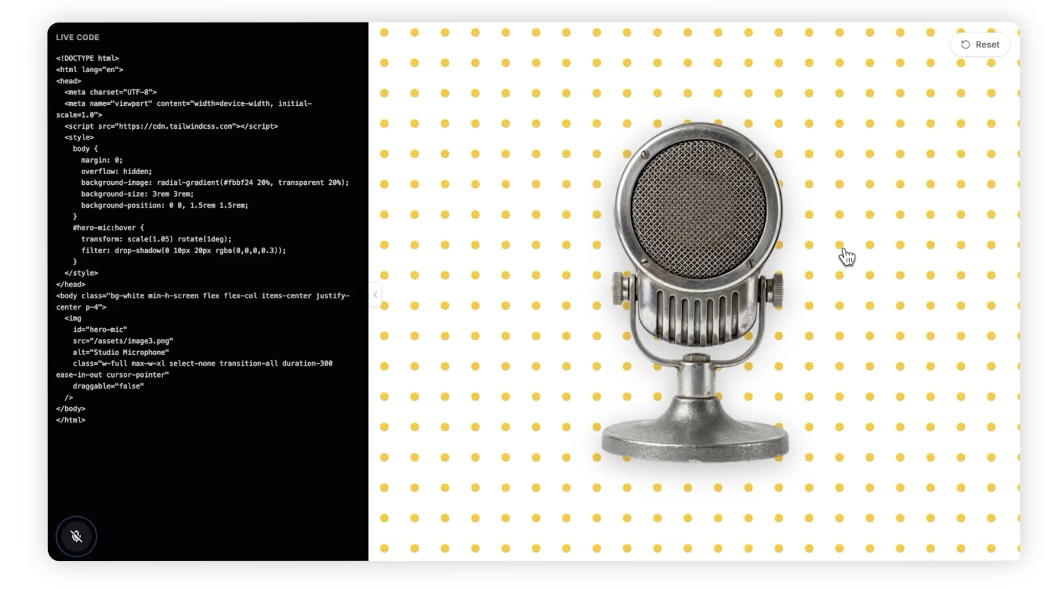
AI voice technology has been advancing rapidly, and at the center of this progress is Google’s latest model, Gemini 3.1 Flash Live. This model boasts top-tier quality among all audio and voice AI released to date and is regarded as a major milestone toward building next-generation voice-first agents.
In particular, Gemini 3.1 Flash Live significantly improves upon the limitations of previous voice models. One of the most notable advancements is the dramatic reduction in latency. Since response speed directly impacts the level of immersion in conversations between users and AI, this model delivers near real-time responses, enabling a much more natural conversational experience.
In addition, speech recognition accuracy has been greatly enhanced. It can reliably understand speech across various accents, pronunciations, and even in noisy environments, making it highly practical for real-world applications. This is especially important for use cases such as customer support, voice assistants, and interactive educational systems.
Furthermore, Gemini 3.1 Flash Live goes beyond simple voice recognition to provide more human-like interactions. By understanding the flow of conversation and reflecting context in its responses, it moves away from mechanical responses and enables more natural and flexible communication. These capabilities are key factors in significantly improving the overall user experience (UX).
Ultimately, this model represents more than just a technological upgrade—it serves as an important milestone that points to the future direction of voice-based interfaces. As voice-driven AI agents continue to expand across various industries, Gemini 3.1 Flash Live is expected to play a central role in this evolution.
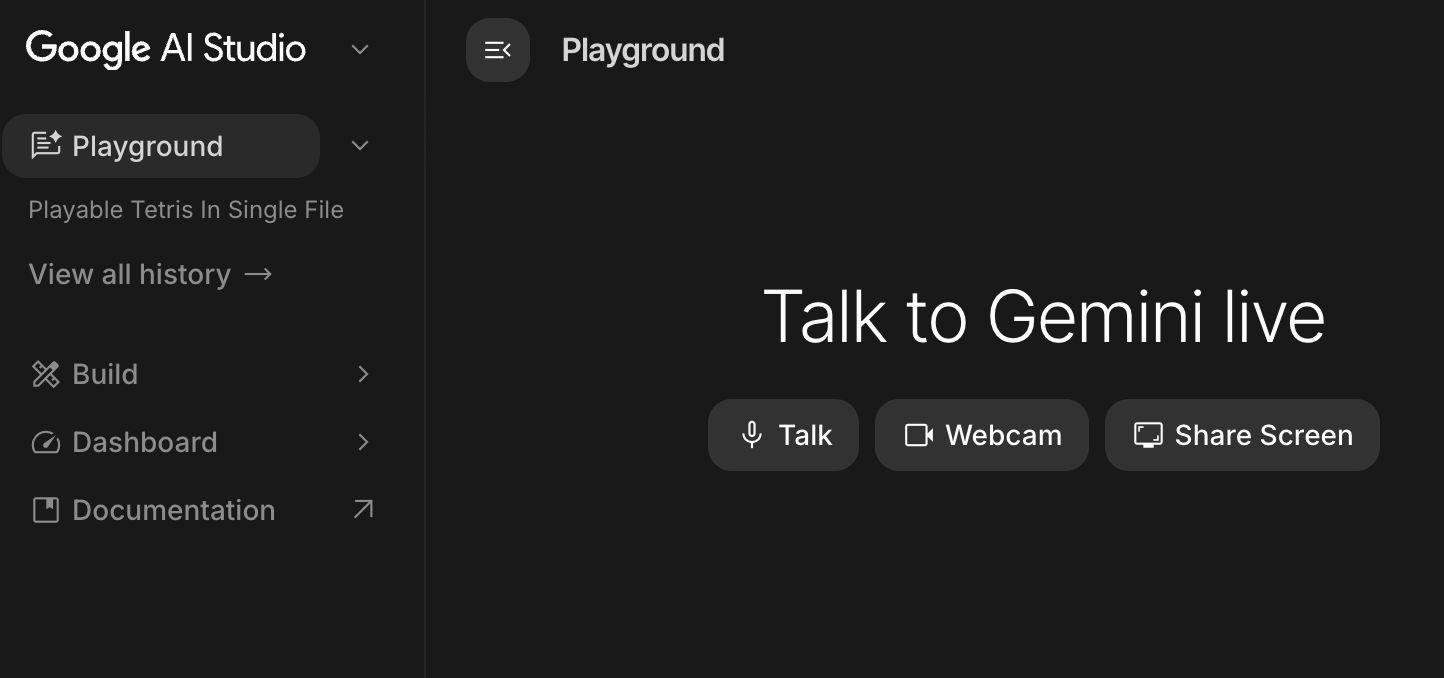
For more details, you can try it directly on the official site below.
https://aistudio.google.com/live
Today's News/Tips
oCam Closes Automatically a Few Seconds After Launching
When trying to record with oCam, a specific issue may occur if an online video lecture site is running. This problem is usually caused by anti-recording software used by the site to protect its content. Below is a detailed explanation of the issue and how to handle it.
Online video lecture sites often use anti-recording software to protect copyrighted content. This software detects recording programs such as oCam and force-closes them at regular intervals. As a result, oCam may not be able to continue recording normally or may close unexpectedly.
To resolve this issue, you need to contact the online video lecture site directly where you want to record. Ask the site operator whether recording is allowed and check their related policy. If necessary, request permission to record. Some sites may allow recording under certain conditions or provide a way to temporarily disable the anti-recording feature.
Attempts to bypass issues caused by anti-recording software may violate the site's terms of use, so it is important to follow the site's policy. Therefore, if you want to record lecture content with oCam, first consult the site administrator and follow the proper procedure.