Download Useful External Codecs
If you want to use various video codecs with oCam, you can install external codecs to adjust recording quality and file formats the way you want. Below is information about the external codecs supported by oCam and how to install them. Installing external codecs allows you to use oCam more flexibly.
After installing an external codec, you must restart oCam. Once restarted, the installed codec will automatically appear under the 'External Codec' option in the oCam settings menu, where you can select it for recording. External codecs can be downloaded from the following link:
https://ohsoft.net/update/codec.php
The following are descriptions of the main external codecs supported by oCam:
Xvid Video Codec
The Xvid codec is a video codec that implements the MPEG-4 Simple Profile and Advanced Simple Profile standards. This codec offers efficient compression and high compatibility, making it suitable for creating videos that can be played on a wide range of devices and software. With Xvid, you can keep file sizes reasonable while minimizing quality loss during recording.
x264vfw Codec
x264vfw is a VfW (Video for Windows) codec that includes the widely known x264 encoder and ffh264 decoder. Based on the H.264 format, this codec can save high-quality video in a smaller file size. x264vfw is especially suitable for users who want sharp image quality and efficient compression, and it also offers excellent compatibility with various video editing software.
VP8 Codec
The VP8 codec can encode video at quality comparable to or better than H.264 video encoders. VP8 is a core component of the WebM format and is well suited for web-based video streaming or high-quality video storage. With this codec, you can reduce file size while maintaining clear image quality for efficient recording.
Lagarith Codec
Lagarith is a lossless video codec designed for video editing and archiving. As a lossless codec, it preserves the original video quality exactly, but the file size can be relatively large. Therefore, it is suitable for users who want to edit high-quality video or store it for the long term.
By installing and using external codecs in oCam, users can choose the best codec for their recording purpose and environment. For example, if you want to reduce file size, you can choose x264vfw or VP8, and if you want to create editing footage without quality loss, you can choose Lagarith. Download the codec you need from the link above, restart oCam, and apply the codec you want.
Today's News/Tips
oCam Advanced Settings - Save
Click Tools - Options on the oCam main menu to view the settings in the Save category.
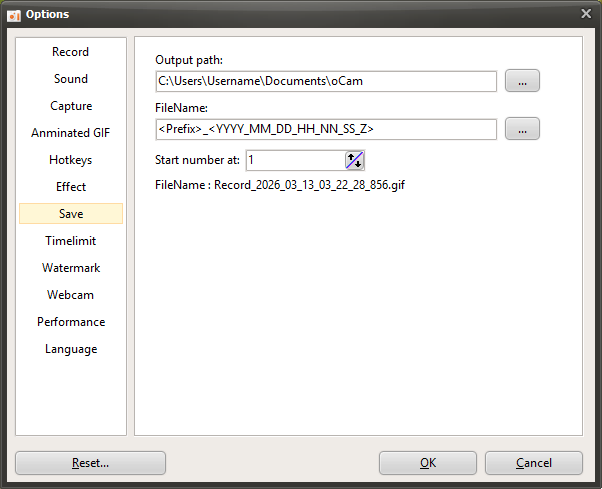
By default, the save path is set to the "This PC-Documents-oCam" folder in Windows 10, and all recordings, audio recordings, and captures are saved to this location.
The save path can be changed by clicking the button.

The file name to be saved follows a predefined format or a user-defined format, and by default it is set to "<Prefix>_<YYYY_MM_DD_HH_NN_SS_Z>".
The file name format can also be changed by clicking the button, and when you click it, you can see the predefined formats.
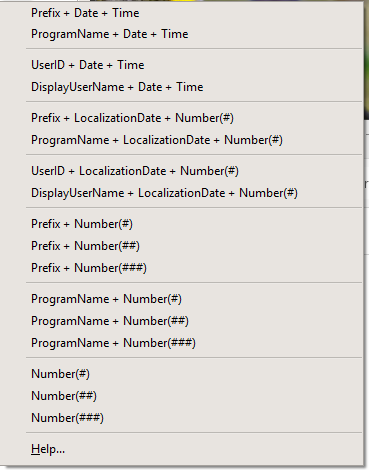
If you click the Help menu item, you can see more detailed information about the format, as shown below.
( When the Help menu item was clicked at 11:29:49.902 AM on June 16, 2016 )
<Y> = 16
<YY> = 16
<YYYY> = 2016
<M> = 6
<MM> = 06
<MMM> = 6
<MMMM> = June
<D> = 16
<DD> = 16
<DDD> = Thu
<DDDD> = Thursday
<DDDDD> = 2016-06-16
<DDDDDD> = Thursday, June 16, 2016
<C> = 2016-06-16 11:29:49 AM
<H> = 11
<HH> = 11
<N = 29
<NN> = 29
<S> = 49
<SS> = 49
<Z> = 902
<ZZZ> = 902
<T> = 11:29 AM
<TT> = 11:29:49 AM
<AM/PM> = AM
<a/p> = a
<ampm> = AM
<Prefix> = Recording
<ProgramName> = oCam
<UserID> = User Name
<DisplayUserName> =
<#> = 1
<##> = 01
<###> = 001
The file name format may feel difficult for some users, so here are a few examples.
- If the file name is <Prefix>_<#>, then <Prefix> is the prefix and # is the serial number.
The prefix is replaced with Recording when recording video, Audio when recording sound, and Capture when capturing the screen, while # is replaced with a serial number.
For example, when you finish recording the screen, a file named Recording_1 is created. ( Only if there is no similar file name in the oCam save folder. )
And when you record again, a file named Recording_2 is created. The reason the serial number becomes 2 is because a file named Recording_1 already exists.
- If the file name is <ProgramName>_<#>, then <ProgramName> represents the name of the program being recorded. In normal screen recording, it is replaced with oCam, and <#> is added as a serial number just as before.
However, when recording a game, recording starts inside the game program, so the file is created using the name of the game's executable file.
- If the file name is <dddddd>_<#>, then dddddd means the localized date, so on a Korean operating system it is replaced with the current date at the time this was written, Thursday, June 16, 2016, and # is filled in with a serial number.
The localized date varies depending on the language settings of the operating system. In other words, it appears differently on an English OS because it uses the format built into the operating system.
- If the file name is My_<#>_th_<Prefix>_File, then when recording, a file named My_1st_Recording_File is created, and when recording again, the file name becomes My_2nd_Recording_File.
- If the file name is <UserID> recorded <Prefix> of the game called <ProgramName> on <DDDDDD>. then it may be created as "AdvancedDeveloper recorded Recording of the game called LocalDeformablePRT on Thursday, June 16, 2016." The content inside <> varies depending on what is being recorded.
Serial number start means the starting number of the serial number that can be set with # inside <>.