What are the supported video codecs and container formats?
What are the supported video codecs and container formats?
You can check supported codecs immediately by clicking the Codec button in the main oCam window.
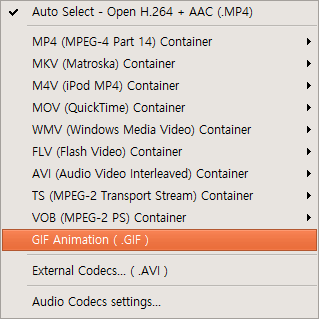
The default video codec is Open H.264 + AAC (.MP4).
In addition, MPEG-1, MPEG-2, MPEG-4, XVID, OpenDivX, Microsoft MPEG-4 Part 2, and Microsoft MPEG-4 Part 3 are also supported.
All of these codecs are saved in MP4 or AVI container formats.
oCam records using optimized codecs at installation time, and when these codecs are used, the recorded files can be played on almost all media players without installing additional codecs, unlike many other screen recording programs.
Usually, you may need to install codecs to play a recorded video, but with these codecs, most are supported by default.
This means that you can play oCam-recorded video files directly in Windows Media Player immediately after installing Windows without installing any additional software.
So there is no extra hassle of having to install extra codecs.
Also, MPEG-4, XVID, and OpenDivX are internally encoded with the MPEG-4 codec in oCam, with only the FourCC value changed for XVID and OpenDivX.
Additionally, supported container formats include FLV.
FLV stands for Flash Video and supports live streaming, so you can upload FLV files directly to places like a Zboard forum and preview them immediately on the web.
You can also use an FLV player. FLV is encoded with the MPEG-4 codec in oCam.
For Apple’s QuickTime format, MOV is a QuickTime-only format and uses the MPEG-4 codec.
Also, MPEG-2 Transport Stream has the .TS extension, and MPEG-PS has the .VOB extension; both use MPEG-2 as the codec.
If you choose GIF animation for creating animations, you can make a moving image.
Finally, all audio codecs used during video recording are saved as MP3.
Additionally, external codecs are supported; please refer to a separate post for details on external codecs.
Today's News/Tips
No sound is heard during recording (Windows XP)
No sound is heard during recording (Windows XP)
For Windows XP, because Microsoft has ended support for this operating system, it may not work correctly. (for reference)
In Control Panel, double-click the Sound and Audio Devices icon.
This is a brief explanation of each function button.
The Volume Control window opens, then click Properties in Options.
Select Recording, and in the volume control section below, check “Stereo Mix” and click OK.
Check the box for Stereo Mix and set the volume to the maximum, and the sound will be recorded together.
The name of Stereo Mix may appear differently depending on the computer.
If the device name shown below appears in the list, use that device.
Stereo Mixer
Mixed Output
Stereo Mix
Mixed Out
Stereo Output
What U hear
Stereo Out
Loop back
Digital Mixe
Post-Mix
Digital Mix
Sum
wave out mix
Wake Output Mix
Wave / MP3