Overview of CapturePlus Image Effect Features
This feature lets you adjust image brightness, mosaic effects, size, and more.
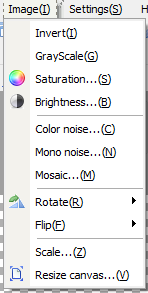
-Invert Colors: Applies an overall color inversion effect to the image.
-Black and White Effect: Applies a black-and-white effect to the image.
-Adjust Saturation: Lets you adjust the saturation level.
-Adjust Brightness: Lets you adjust the brightness.
-Add Noise (Color): Creates a color noise effect.
-Add Noise (Mono): Mono creates a white noise effect.
-Add Mosaic: Applies a mosaic effect to the entire image.
-Rotate: Lets you rotate the image to 90, 180, 270 degrees, or a custom angle.
-Flip: Flips the image left/right or up/down.
-Zoom In and Out: Lets you enlarge or reduce the image, and you can keep the aspect ratio when changing the width or height.
-Resize Canvas: Lets you change the canvas size and background color.
Today's News/Tips
A Quick Look at VirtualDVD Features
Features of product
* Completely 100% FREE Software
* All supported CD/DVD/Blu-ray image formats
CloneCD (*.ccd), CDRWin (*.bin), Cue Sheets (*.cue), CDImage (*.img), ISO (*.iso),
BlindRead (*.bwt), BlindWrite (*.b5t; *.b6t), Alcohol 120% Image (*.mds;*.mdf),
Disc Juggler (*.cdi), Instant CD/DVD (*.pdi), Compressed ISO (*.isz), Nero (*.nrg),
CloneDVD (*.dvd), CDSpace6 (*.LCD), Media Data eXtended (*.MDX), Media Descriptor Sidecar(*.MDS)
* Emulate up to 24 SCSI devices in all
* Perform image mounting to local NTFS folders
* Customize virtual drives: change a drive letter, DVD region
* Support Encrypted isz(Compressed ISO) file
How to Start
VirtualDVD is very easy and simple.
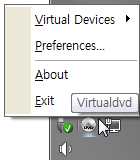
1. Click(Left or Right) the VirtualDVD's trayicon.
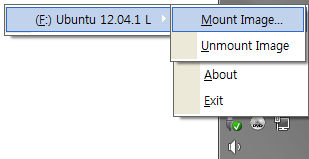
2. Select Menu(Virtual Devices->Mount Image).
3. Select CD/DVD Image file.
- Trayicon Menu
- Mount Image Menu
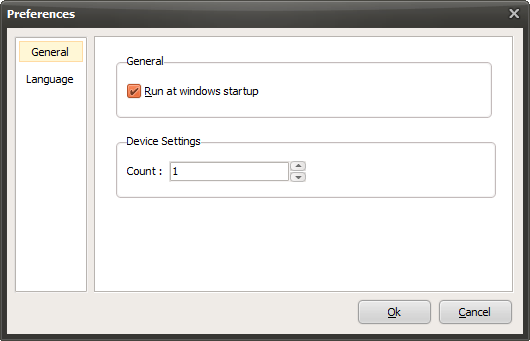
- Preferences