Overview of CapturePlus Image Editing Features
This feature lets you easily edit captured images and supports various drawing tools as well as text input tools.
It also includes features such as automatically expanding the image area when you open the selected area in a new window (Ctrl+Del) or paste an image from the clipboard.
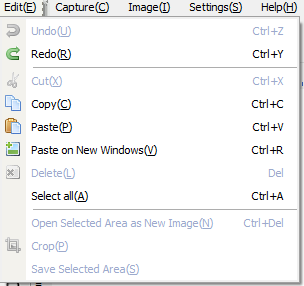
After selecting the parts you want from the captured screen, you can copy them to the clipboard with Ctrl + C, open them in a new window, or save only the selected area directly as a file using the Save Selected Area feature.
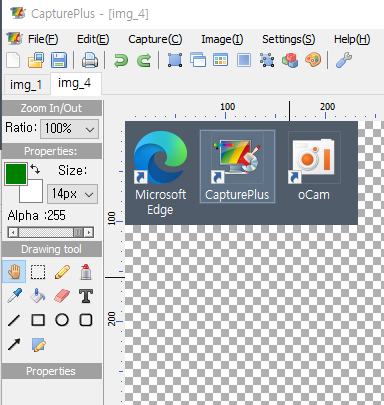
-Zoom In / Zoom Out: You can also use (Ctrl + Scroll Up) / (Ctrl + Scroll Down).
-Alpha (transparency) values can be applied to drawing tools.
-Provides common drawing tools, shapes, and arrows.
-Supports adding text (including frame and font properties).
Today's News/Tips
How to Set Recording Quality (From High Quality to Low Quality)
How to Set Recording Quality ( From High Quality to Low Quality )
Note: This setting does not apply to external codecs and only applies to oCam's built-in codecs. Lowering the recording quality will reduce the size of the recorded video file, but the video quality will also decrease.
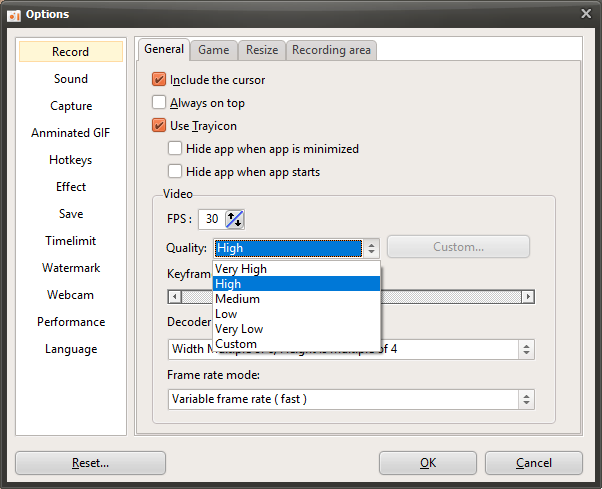
There is a menu at the top of oCam. Click Tools - Options, then click Encoding on the left, and you can select the quality as shown below. By default, it is set to Very High (high quality).
You can choose from the following quality levels when recording.
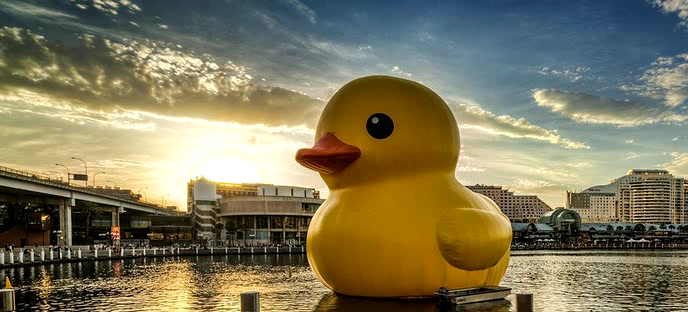
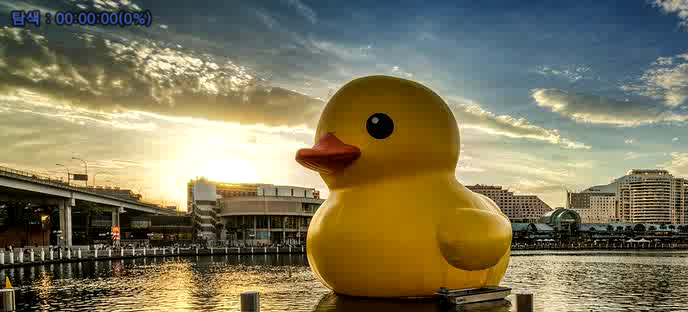
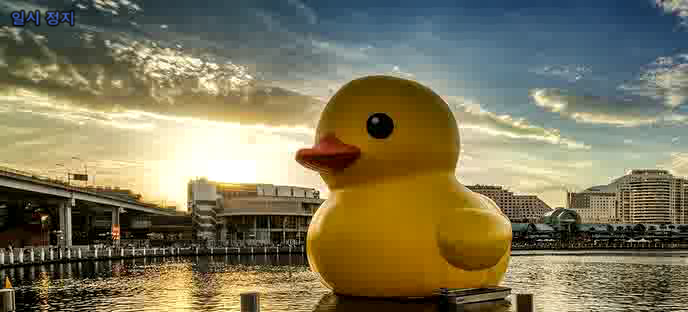
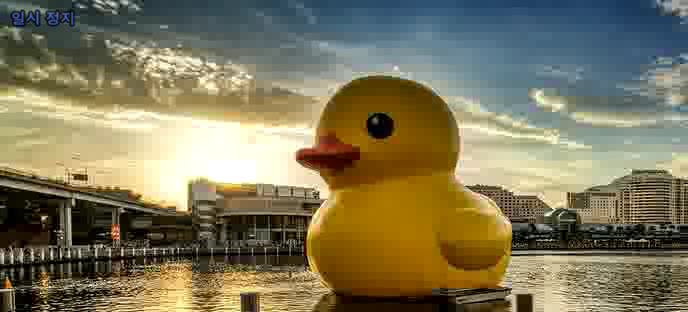
Below are captured preview images showing the recorded quality from Very High to Very Low.
Recorded at Very High
Recorded at High
Recorded at Medium
Recorded at Low
Recorded at Very Low