A Quick Look at VirtualDVD Features
Features of product
* Completely 100% FREE Software
* All supported CD/DVD/Blu-ray image formats
CloneCD (*.ccd), CDRWin (*.bin), Cue Sheets (*.cue), CDImage (*.img), ISO (*.iso),
BlindRead (*.bwt), BlindWrite (*.b5t; *.b6t), Alcohol 120% Image (*.mds;*.mdf),
Disc Juggler (*.cdi), Instant CD/DVD (*.pdi), Compressed ISO (*.isz), Nero (*.nrg),
CloneDVD (*.dvd), CDSpace6 (*.LCD), Media Data eXtended (*.MDX), Media Descriptor Sidecar(*.MDS)
* Emulate up to 24 SCSI devices in all
* Perform image mounting to local NTFS folders
* Customize virtual drives: change a drive letter, DVD region
* Support Encrypted isz(Compressed ISO) file
How to Start
VirtualDVD is very easy and simple.
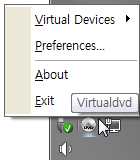
1. Click(Left or Right) the VirtualDVD's trayicon.
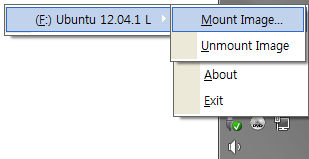
2. Select Menu(Virtual Devices->Mount Image).
3. Select CD/DVD Image file.
- Trayicon Menu
- Mount Image Menu
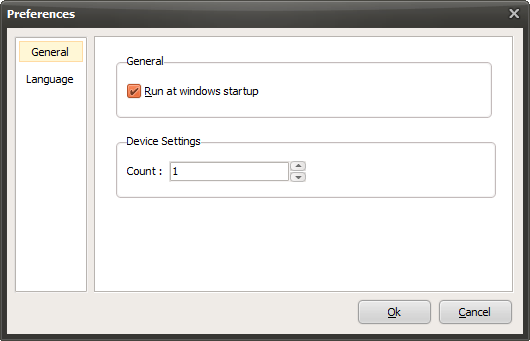
- Preferences
Today's News/Tips
How to Ensure Recorded Videos Can Be Recovered Even If the App Is Force-Closed During Recording
When recording video with oCam, selecting the MKV container from the Codec menu allows the video file to be saved more safely even in unexpected situations. The MKV container offers excellent file stability, so even if the program closes during recording due to various issues, the file will not be corrupted and can still be played normally.
For example, even if oCam is force-closed during recording, or if a game suddenly crashes while recording gameplay, the video file saved in the MKV container can still be played normally. This is possible because the MKV format is designed to store data in a highly stable file structure.
On the other hand, if you use the MP4 container, the file may become corrupted and impossible to recover in the same kind of abnormal shutdown situation. For stable recording, using the MKV container is recommended.
However, there are a few things to keep in mind when playing MKV files. If you play an MKV file in Windows Media Player, the seek function, such as jumping to a specific point in the video, may not work smoothly. Playback itself works without a problem, but for better seeking convenience, it is recommended to use an external video player such as PotPlayer. PotPlayer plays MKV files reliably and also supports smooth seeking.
Also, MKV files are not supported by Naver's video upload feature. Since the Naver platform does not allow MKV uploads, you will need to use a platform such as YouTube if you want to share videos on the web. YouTube supports MKV uploads without issues and provides an environment optimized for sharing and playback.
Therefore, if you want stable recording with oCam, the most effective method is to select the MKV container from the Codec menu, use an external player such as PotPlayer for playback, and use YouTube for web sharing.