How to Change the SecretFolder Password
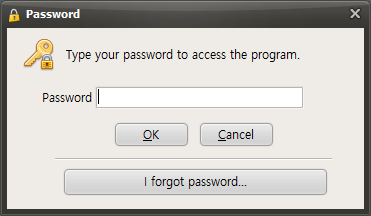
When you run SecretFolder, a password entry window appears on the screen as the program starts for user authentication. This window contains a text field where you can enter your password, and you must enter the password you are currently using exactly. After entering the password, click the OK button to launch SecretFolder normally and access your protected files.
To change the password while SecretFolder is running, first find the Preferences button in the program window. Clicking this Preferences button opens the settings menu, where you can adjust various SecretFolder options.
When the Settings menu opens, find and click the "Change Password" button among the available options. This button is usually located under the security-related settings and may be labeled "Change Password" Clicking the Change Password button opens a new window where you can proceed with changing your password.
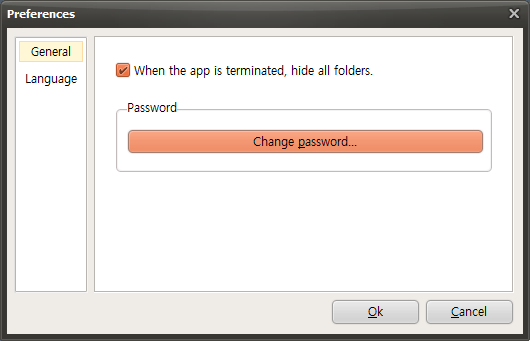
When the password settings window opens, you will see an input field where you can enter a new password. Carefully enter the new password you want to use here. For security, the password should be sufficiently long and complex, and you may need to enter the same password again for confirmation. Once all entries are complete, click the OK button to finish changing the password. After that, you will be able to access SecretFolder using the newly set password.
Today's News/Tips
Using external codecs - using x264.
Using an external codec - Using x264
oCam supports external codecs (VFW), and here we will learn how to use the x264 codec.
You can download the x264 codec from the site below.
http://sourceforge.net/projects/x264vfw/
Go to the site and click the download button.
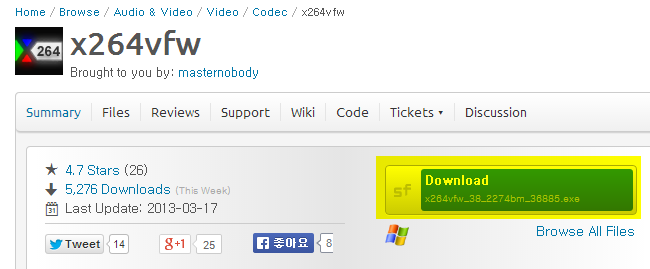
Download starts automatically.
For the installation screen, you can just click Next.
Agree to the license agreement.
Specify the installation path.
Installation is complete.
Click Finish.
After installing the codec, you must restart oCam to see it in the external codec list.
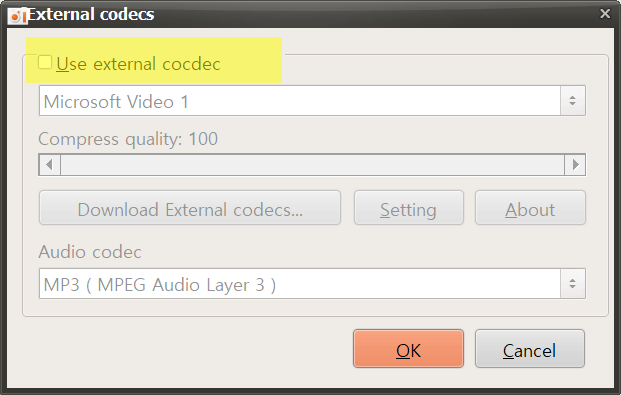
After restarting oCam, click the Codec button on the main oCam window and click the External Codec menu.
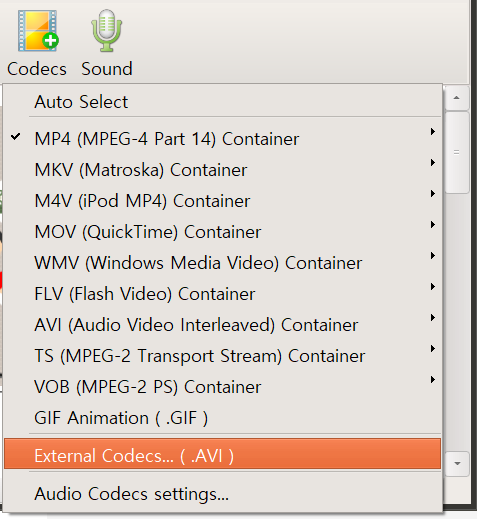
Check the Use External Codec box.
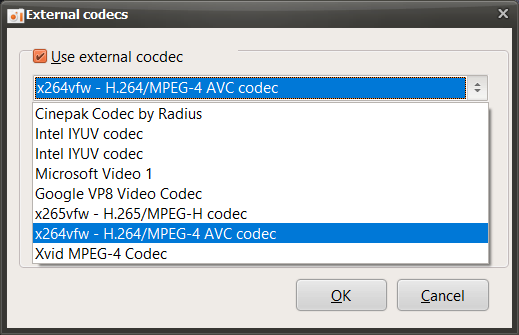
In the list, select x264vfw - H264/MPEG-4 AVC codec.
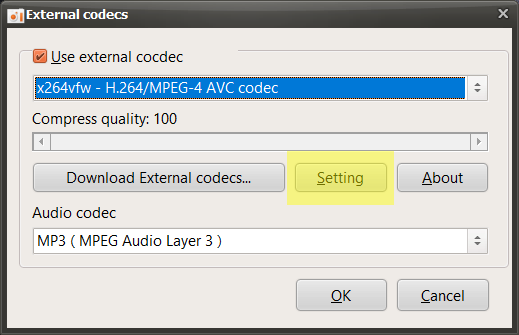
Then click the Settings button to view detailed codec settings.
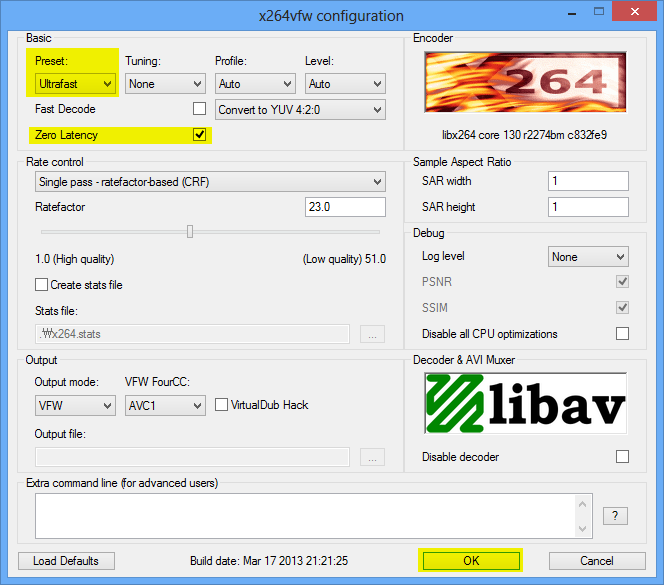
A codec settings window opens as shown below. Since this is not normal video encoding but real-time screen recording, select Ultrafast in Preset and check the Zero Latency box to make encoding as fast as possible, then click OK.
(This setting is useful for real-time recording, and you can adjust it as appropriate for your situation.)
After setting it this way and starting recording, it will be recorded using the x264 codec.
If you record like this, the recording is done using x264 codec.
* For game recording, if the game you want to record is 64-bit, you must also install the 64-bit version of x264vfw (by default, unless you touch the option during x264vfw installation), x264vfw-Configure x264vfw64 from the Start menu. Run it and set it up as described above.
* Keep / Accept only YUV 4: 2: 0, Keep / Accept only YUV 4: 2: 2, Keep / Accept only YUV 4: 4: 4 are not supported for x264vfw setting and recording will fail when using this setting.