What to Do If the SecretFolder "Failed to ConnectToFilterDriver" Error Occurs
The SecretFolder program is not installing properly at the moment, so you will need to remove it manually in order to delete it completely. The steps are explained in detail below.
First, press the Windows key and the R key on your keyboard at the same time. A small input window called "Run" will then appear on the screen. Type "regedit" exactly into that window and press Enter to open the Registry Editor. The Registry Editor is a tool that can modify system settings, so please proceed carefully.
Once the Registry Editor is open, go to the following path in the tree on the left:
HKEY_LOCAL_MACHINE\SOFTWARE\Wow6432Node\Microsoft\Windows\CurrentVersion\Uninstall\SecretFolder_is1
Find the "SecretFolder_is1" key at this location, right-click it, and select "Delete" to remove the key completely. This path is mainly used on 64-bit systems.
If you cannot find the "SecretFolder_is1" key in the path above, your system may be 32-bit, so please check the following path:
HKEY_LOCAL_MACHINE\SOFTWARE\Microsoft\Windows\CurrentVersion\Uninstall\SecretFolder_is1
At this location as well, find the "SecretFolder_is1" key, right-click it, and select "Delete" to remove it. This will clean up the registry entries related to SecretFolder.
Once the registry work is complete, you will need to delete the folder related to SecretFolder from the file system. First, open File Explorer and go to the following path:
%programfiles(x86)%\SecretFolder
This is usually the default installation path on a 64-bit system. %programfiles(x86)% typically refers to C:\Program Files (x86), and there should be a folder named "SecretFolder" there. Find that folder, right-click it, and select "Delete" to remove the folder and all files inside it completely.
If you cannot find the "SecretFolder" folder in the path above, your system may be 32-bit, so please check the following path:
%programfiles%\SecretFolder
This path, %programfiles%, usually refers to C:\Program Files. Here as well, find the "SecretFolder" folder, right-click it, and select "Delete" to remove the folder and all of its contents.
Once you complete all of the steps, the registry entries and files related to the SecretFolder program will be completely removed from your system. If you run into any issues during the process or have trouble finding the path, check whether you entered the path correctly or whether you are running with administrator privileges. By following this process, you can manually remove SecretFolder cleanly.
Today's News/Tips
How to Use the x264vfw External Codec
oCam supports external codecs (VFW), and here we will look at how to use the x264 codec.
You can download the x264 codec from the site below.
https://sourceforge.net/projects/x264vfw/
Go to the site and click the Download button.
The download will start automatically.
On the installation screens, just keep clicking Next.
Accept the license agreement.
Specify the installation path.
The installation is complete.
Click Finish.
After installing the codec, you must restart oCam before it will appear in the external codec list.
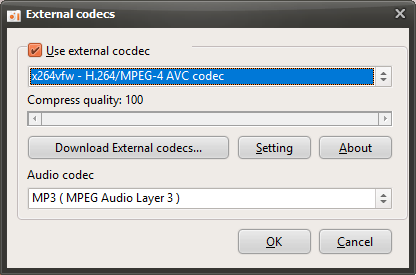
After restarting oCam, click the Codec button in the oCam main window, then click the External Codec menu.
Select the Use External Codec checkbox.
From the list, select x264vfw - H264/MPEG-4 AVC codec.
Then click the Settings button to view the detailed codec settings.
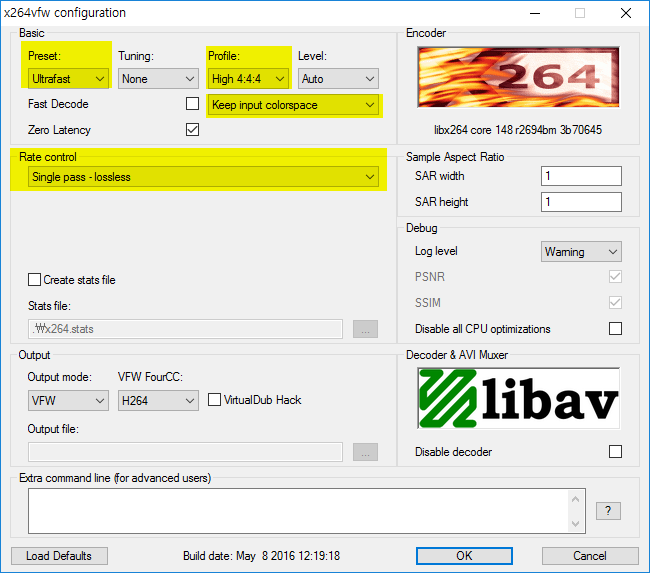
The codec settings window will appear as shown below. Since we need to record the screen in real time rather than perform normal video encoding, select Ultrafast in Preset and check the Zero Latency checkbox so that encoding is performed as quickly as possible, then click the OK button.
( This setting method is useful for real-time recording, and you can adjust it as needed depending on your situation. )
After configuring it this way, your recording will use the x264 codec.
* For game recording, if the game you want to record is 64-bit, you must also install the 64-bit version when installing x264vfw ( by default, it is installed automatically unless you change the installation options ). Then run x264vfw - Configure x264vfw64 from the Start menu and configure it the same way as described above.
* The x264vfw settings Keep/Accept only YUV 4:2:0, Keep/Accept only YUV 4:2:2, and Keep/Accept only YUV 4:4:4 are not supported, and recording will fail if you use those settings.