Overview of SecretFolder's Key Features
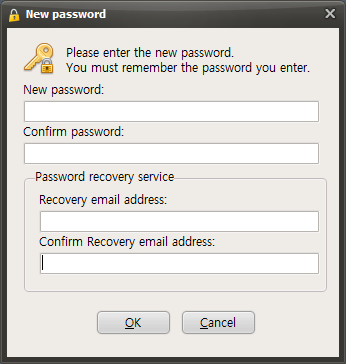
When you launch SecretFolder for the first time, a password setup window like the one below will appear, and you must enter a password before you can use the program.
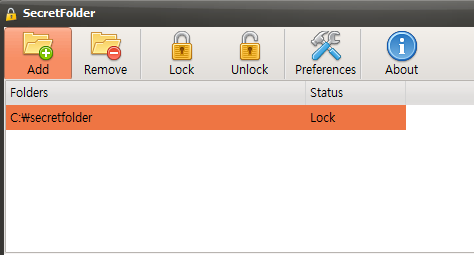
After setting a password and launching SecretFolder, you will see buttons like the ones below.

Add - Adds the folder you want to hide.
Remove - Removes a previously added folder. ( The folder itself is not deleted; it is only removed from the list. )
Lock - Hides the folder added through the Add button.
Unlock - Makes a folder hidden through the Add or Lock button visible again.
Preferences - Opens the window where you can configure the main settings.
About - Opens the program information window.
Now let's look at how to hide a folder and restore it again.
First, to hide a folder, click the "Add" button.
When the Browse for Folder window appears, "select the folder you want to hide" and click the "OK" button.
You will then see that it has been added to the list as shown below, and the folder will be changed to a hidden state.
To remove a folder from the list, click the "Remove" button.
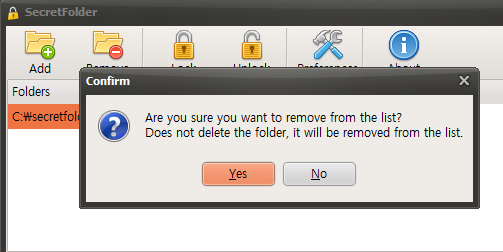
Clicking the "Yes" button will remove it from the list, but the actual folder will not be deleted.
Today's News/Tips
How to Set Up Automatic Login Using Autologon.exe
Here is how to set up automatic login using the autologin tool.
This method uses Autologon.exe from Microsoft's official Sysinternals Suite. It also provides a certain level of security by storing the password in encrypted form in the registry.
How to Set Up Automatic Login Using Autologon.exe
1. Download Autologon
Official Microsoft site: https://learn.microsoft.com/en-us/sysinternals/downloads/autologon
File download link: https://download.sysinternals.com/files/AutoLogon.zip
Click the Download Autologon button at the link above to download the ZIP file.
After extracting it, you will see the `Autologon.exe` file.
2. Run Autologon and Configure It
Run `Autologon.exe` as administrator. (Right-click → "Run as administrator")
When the window opens:
Username: The account to log in automatically
Domain: In most cases, the computer name is filled in automatically
Password: Enter the password for that account
Click the [Enable] button
If the message “Autologon successfully configured” appears, setup is complete!
3. How to Disable Automatic Login
Run `Autologon.exe` the same way and click [Disable] to turn off automatic login.