The System Becomes Sluggish During Recording
When recording with oCam, if the mouse moves slowly or the entire system feels sluggish, you need to adjust the settings to resolve the issue. Below is a detailed explanation of how to reduce the problem and lower the system load.
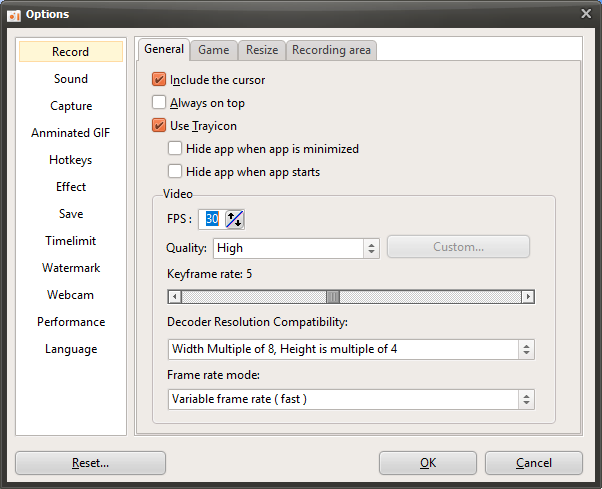
1. Click the 'Settings' button in the oCam main window.
2. When the Settings window opens, go to the 'Encoding' tab in the menu on the left.
3. In the 'Encoding' tab, check the 'Frames Per Second (FPS)' setting. The default value is likely set to 30.
4. Gradually lower the FPS value while testing system performance. For example, start at 30 and reduce it step by step to 25, 20, 15, and 10.
5. At each step, start recording and check whether the mouse movement or system sluggishness improves.
6. After finding the optimal FPS value for your PC specifications, click the 'OK' button to save the settings.
Lowering the FPS may reduce video smoothness, but it can also reduce system resource usage and improve slowdown during recording. It is important to experimentally find the FPS value that best suits your PC specifications (CPU, GPU, RAM, etc.). After changing the setting, make a test recording to find the best balance.
oCam Help · Troubleshooting
- How to Fix the Issue of 7 Days to Die Not Being Detected for Game Recording (Anti-Cheat Related)
- What to Do If Minecraft Crashes as Soon as You Start Recording with oCam (NVIDIA Graphics Card)
- How to Fix Severe Lag When Editing Videos in Adobe Premiere
- What to Do If the "Failed to get path of 64-bit Common Files directory" Error Occurs When Installing oCam
- How to Fix the "Error while writing video frame (error=-28)" Error
- If Avast is installed, please disable the DeepScreen feature.
- What to Do If Chrome Blocks the Download with "Blocked by Chrome because it's dangerous."
- What to Do If the "Cause: failed to avio_open(error=-13)" Error Occurs During Recording