How to Set Recording Quality (From High Quality to Low Quality)
How to Set Recording Quality ( From High Quality to Low Quality )
Note: This setting does not apply to external codecs and only applies to oCam's built-in codecs. Lowering the recording quality will reduce the size of the recorded video file, but the video quality will also decrease.
There is a menu at the top of oCam. Click Tools - Options, then click Encoding on the left, and you can select the quality as shown below. By default, it is set to Very High (high quality).
You can choose from the following quality levels when recording.
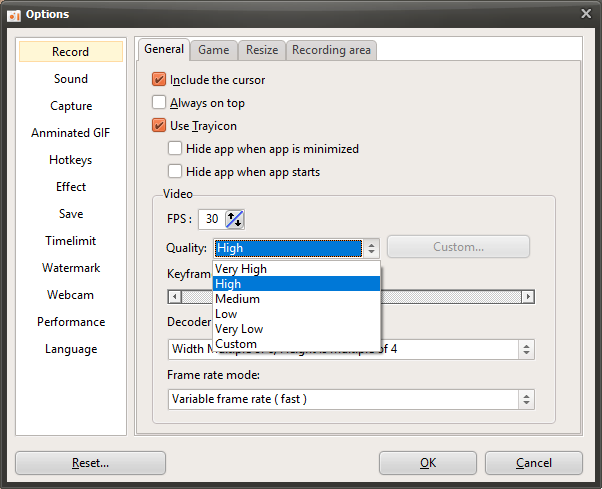
Below are captured preview images showing the recorded quality from Very High to Very Low.
Recorded at Very High

Recorded at High

Recorded at Medium

Recorded at Low
Recorded at Very Low

oCam Help · Quality & codecs
- Using external codecs - using x264.
- How do I record in ultra-high quality (lossless)?
- Setting the Codec - Choosing a Video Codec
- Setting the Codec - Selecting an External Video Codec (VFW)
- Setting the Codec - Adjusting Audio Codec Quality
- How to Reduce the Size of Recorded Video Files When Recording Games (NVIDIA Codec)
- How to Set the Frame Rate Mode - VFR (Variable Frame Rate) or CFR (Constant Frame Rate)
- FAQ About Variable Frame Rate (VFR) and Constant Frame Rate (CFR)