How do I record in ultra-high quality (lossless)?
Generally, recorded video is usually compressed, which can cause some color loss compared to the original screen.
If you want to record in lossless mode, you can use the Lagarith Lossless Video external codec.
You can download it from the following address.
http://lags.leetcode.net/codec.html
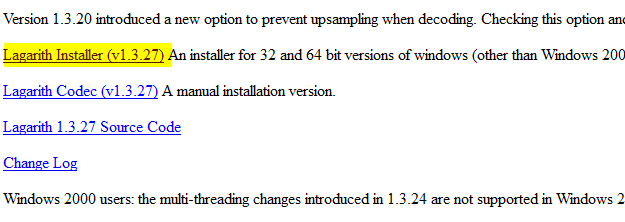
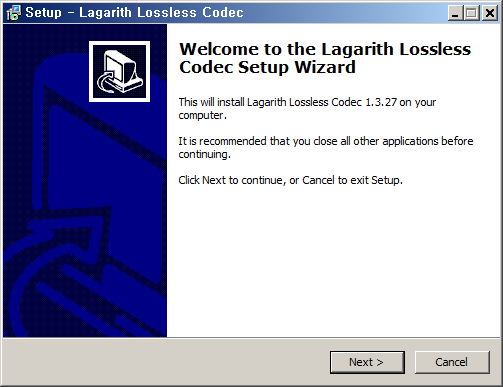
After downloading, install it as shown below.
If oCam is already running, restart it. Then in the oCam main window, click Codec - External Codec, check the Use External Codec box,
and select Lagarith Lossless Video from the list.
After selecting it, click Settings. The settings window opens as shown below. Usually you can leave it as is, but you can adjust it according to your environment.
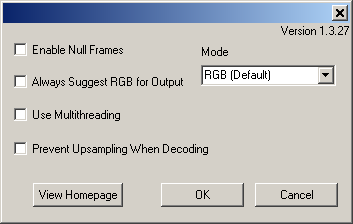
Note that this codec produces visually lossless video, but the resulting files are very large and decoding takes a long time, which may cause playback stuttering.
Therefore, this codec is generally better suited for editing purposes.
oCam Help · Quality & codecs
- Using external codecs - using x264.
- How to Set Recording Quality (From High Quality to Low Quality)
- Setting the Codec - Choosing a Video Codec
- Setting the Codec - Selecting an External Video Codec (VFW)
- Setting the Codec - Adjusting Audio Codec Quality
- How to Reduce the Size of Recorded Video Files When Recording Games (NVIDIA Codec)
- How to Set the Frame Rate Mode - VFR (Variable Frame Rate) or CFR (Constant Frame Rate)
- FAQ About Variable Frame Rate (VFR) and Constant Frame Rate (CFR)