How to Reset oCam Settings (When the oCam Main Window Is Not Visible)
When the oCam main window is visible, you can reset the settings from the Options menu.
Go to Menu - Options, then click the Reset button as shown below to reset all oCam settings.
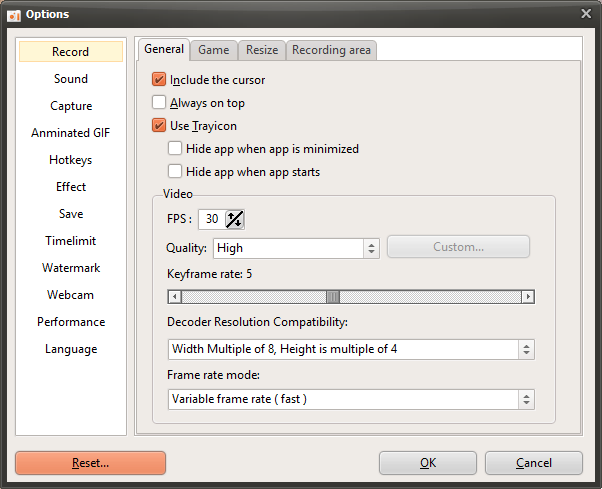
However, if the oCam main window has moved to another area of the PC screen for some reason and is no longer visible, you can reset it using the following method.
After closing oCam, open Windows File Explorer, go to the `%appdata%\ocam` folder, and delete the `Config.ini` file.
However, if you delete the `Config.ini` file directly, your registration information may also be deleted, so this method is not recommended unless absolutely necessary.
oCam Help · Settings
- oCam Advanced Settings - Mouse Cursor Effects - Click Effects
- oCam Advanced Settings - Mouse Cursor Effects - Highlight Effects
- oCam Advanced Settings - Mouse Cursor Effects - Cursor Size
- oCam Advanced Settings - Save
- How to Change the File Name of Saved Recordings, Audio Recordings, or Captures
- How to Ensure Recorded Videos Can Be Recovered Even If the App Is Force-Closed During Recording
- How to Add a Custom Watermark to Recorded Videos
- Tips for Precisely Adjusting the Recording Area Window