How to Change the File Name of Saved Recordings, Audio Recordings, or Captures
Click Tools - Options in the top menu of oCam.
Then click the Save tab on the left to set the file name for saved files.
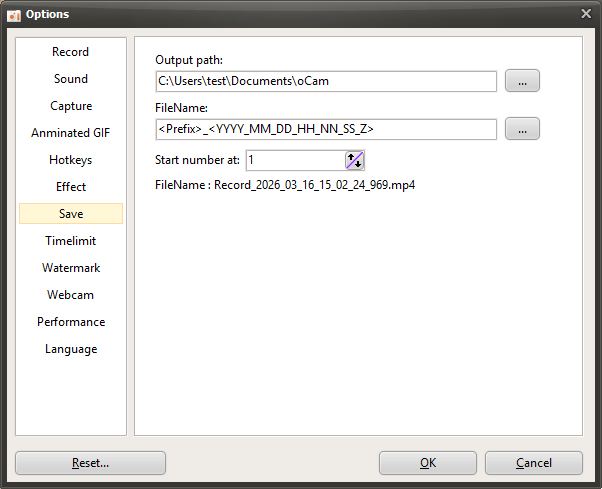
By default, files are saved in the following format.
<Prefix>_<YYYY_MM_DD_HH_NN_SS_Z>
The text inside the <> brackets uses special keywords. These keywords can represent the prefix, date, serial number, program name, user ID, and user name.
With the default settings, when recording starts and then finishes, the file is saved in the format Recording_2015_05_07_14_22_41_791. If you only want to change the word Recording at the beginning, you can change it as follows.
Test_<YYYY_MM_DD_HH_NN_SS_Z>
If you do this, the file will be saved in the format Test_2015_05_07_14_22_41_791 after recording is completed.
If you want to add a serial number after Test instead of the date,
set it to Test_<#>, and it will be saved as Test_1... Test_2 ... Test_3...................... Test_10.
Description of the special keywords used inside the <> brackets
If the current date is
2015_05_07_14_22_41_791
in this format,
<Y> = 15 ( two-digit year )
<YY> = 15 ( two-digit year )
<YYYY> = 2015 ( four-digit year )
<M> = 5 ( one-digit month )
<MM> = 05 ( two-digit month )
<MMM> = 5 ( not used in the Korean locale )
<MMMM> = May ( month name displayed according to the system locale )
<D> = 7 ( one-digit day )
<DD> = 07 ( two-digit day )
<DDD> = Thu ( day of the week )
<DDDD> = Thursday ( displayed according to the locale language )
<DDDDD> = 2015-05-07 ( date )
<DDDDDD> = Thursday, May 7, 2015 ( date and day of the week, displayed according to the locale language )
<C> = 2015-05-07 2:22:41 PM ( date and time )
<H> = 14 ( one-digit hour )
<HH> = 14 ( two-digit hour )
<N = 22 ( one-digit minute )
<NN> = 22 ( two-digit minute )
<S> = 41 ( one-digit second )
<SS> = 41 ( two-digit second )
<Z> = 791 ( milliseconds )
<ZZZ> = 791 ( milliseconds )
<T> = 2:22 PM ( AM/PM label varies by locale, followed by the time )
<TT> = 2:22:41 PM ( AM/PM label varies by locale, followed by the time and seconds )
<AM/PM> = AM or PM
<a/p> = a or p
<ampm> = AM or PM
<Prefix> = Recording for video recording, Screen Capture for captures, Audio for audio recording
<ProgramName> = For normal recording, oCam; for game recording, the executable file name of the game program
<UserID> = Windows user ID
<DisplayUserName> = Windows display name
<#> = one-digit serial number
<##> = two-digit serial number
<###> = three-digit serial number
oCam Help · Settings
- oCam Advanced Settings - Mouse Cursor Effects - Highlight Effects
- oCam Advanced Settings - Mouse Cursor Effects - Cursor Size
- oCam Advanced Settings - Save
- How to Reset oCam Settings (When the oCam Main Window Is Not Visible)
- How to Ensure Recorded Videos Can Be Recovered Even If the App Is Force-Closed During Recording
- How to Add a Custom Watermark to Recorded Videos
- Tips for Precisely Adjusting the Recording Area Window
- How to Move the Recording Area While Recording